¶ Report Card
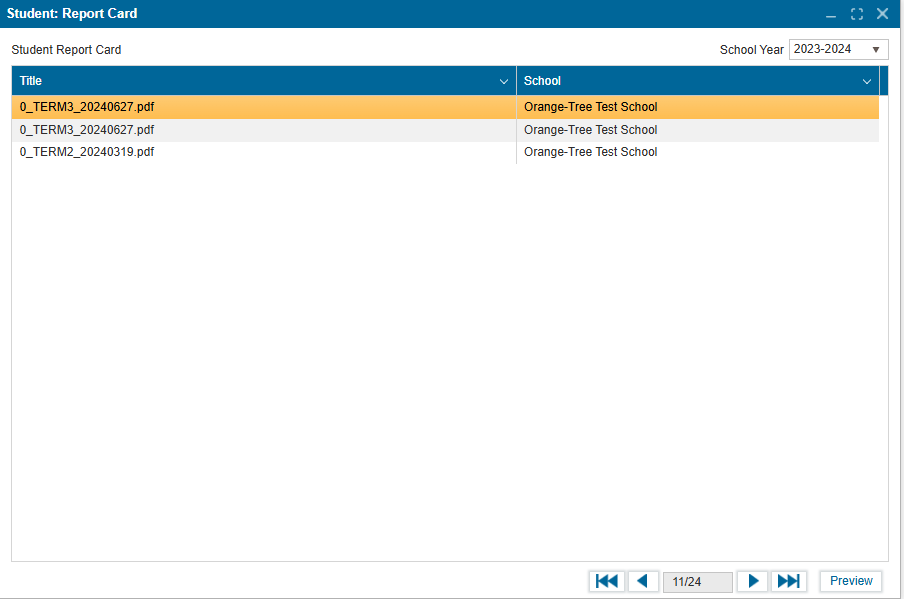
The Student Report Card feature allows admin, students, and parents to view report card files that have been generated for the school year. Reports are stored as PDF documents and can be previewed directly from the system.
⚠️ Important:
- For report cards to appear in this feature, they must first be generated in Administration > Setup Report Card (Setup tab)
- Report cards only become visible to students and parents if the school clicks Send to Public Portal during setup.
¶ 1. Opening Report Card
- Navigate to Student > Report Card.
- The Student Report Card window opens, showing a list of available report cards for the selected school year.
¶ 2. Viewing Available Report Cards
¶ Step 1 – Select the School Year
- Use the School Year dropdown (top right) to choose the academic year.
- Only report cards generated in the selected school year will display.
¶ Step 2 – Browse Report Cards
- The report list displays two columns:
- Title – The report card file name (PDF).
- School – The school that issued the report.
- If multiple reports are available, they will appear in a scrollable list.
- Students and parents may see multiple report cards per year (e.g., Term 1, Term 2, Term 3) only when Send to Public Portal is clicked in Administration > Setup Report Card (Setup tab).
¶ 3. Previewing a Report Card
- Select a report card by clicking on the Title row.
- Click the Preview button in the bottom-right corner.
- The selected PDF will open in a preview window for review.
Notes:
Report cards are only visible after they have been generated in Setup Report Card and published using Send to Public Portal.
- If no reports are showing, confirm with school administration whether:
- The report cards were generated, and
- They were sent to the public portal.