¶ Registration and Enrollment
¶ Overview
The Registration/Enrollment feature is available in both the Admin Portal and the Public Portal, with admins having enhanced access and functionality.
¶ Admin Portal - Registration/Enrollment
School Administrators can:
- Create, reject, view, and accept all registrations and enrollments to their school.
- Edit school registration applications before enrolment.
- Search enrollments and switch between multiple school years.
- Edit and update Admission Test Booking Details.
- Refer to Setup: System Configuration for steps on editing the Registration process.
¶ Public Portal - Registration
Students and Parent/Guardian can:
- Create new registrations to any school in the district.
- Review the status and applications of their previously submitted registrations.
¶ Find/Create and Registration
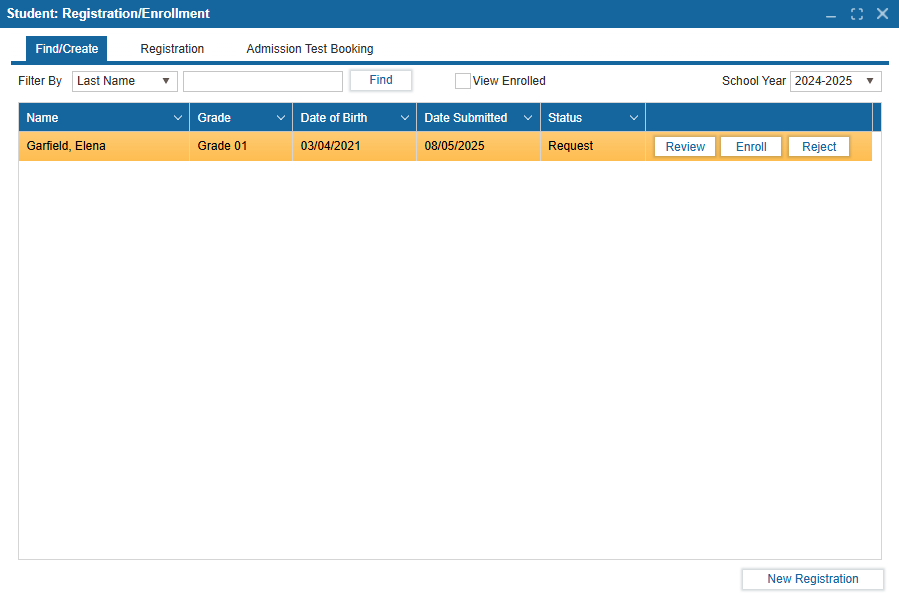
The Find/Create tab shows all registration requests that have been created by users from the Public Portal. You may filter by Last Name, First Name, Date Submitted, Grade, or Status and can also view any currently enrolled students by selecting the checkbox. By default, this tab will show requests from the current school year.
The Registration tab is used to review applicant information and create new students.
- To review an application, select Review.
- Reviewing and enrolling a student will automatically switch your view to the Registration tab and respective subtabs.
- To reject an application, select Reject.
¶ Admitting a Student
-
Select Enroll.
-
You will be prompted to search the student locally, and through the PASI database if there is a PASI Connection.
-
If you choose to Create New Student following the search, you must acknowledge that the student does not already exist according to the search using the checkbox.
-
Review the registration fields and edit if required. Identity fields such as First Name, Last Name, and Date of Birth are not editable to protect the integrity of the search.
-
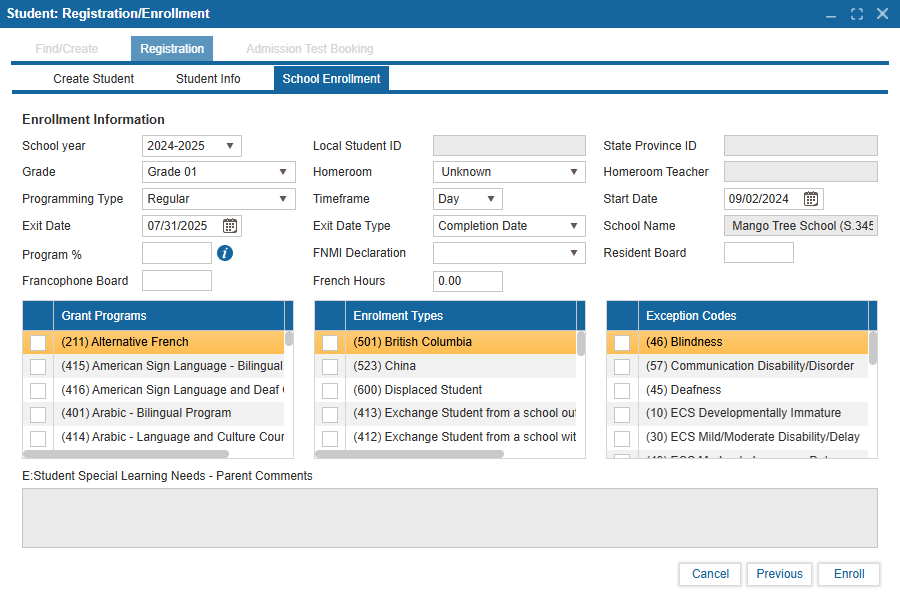
There are 3 main subtabs under Registration:
- Create Student
- Student Info (customized in Setup: System Configuration)
- School Enrollment
-
Create Student contains all the Identification Information required for a student record and is also stored in PASI.
-
Student Info has 6 subtabs of its own
- Personal includes questions about the student
- Contact Info collects the Home and Mailing address of the student, as well as Primary Phone and Email information
- Parent/Guardian details all parent/guardian information that is also saved in PASI
- Additional Contacts allows user to add Emergency Contact(s)
- Health Info includes allergies, illnesses, or any medical information the school should be aware of
- Custom includes any additional questions that can be added by the school in System Configuration
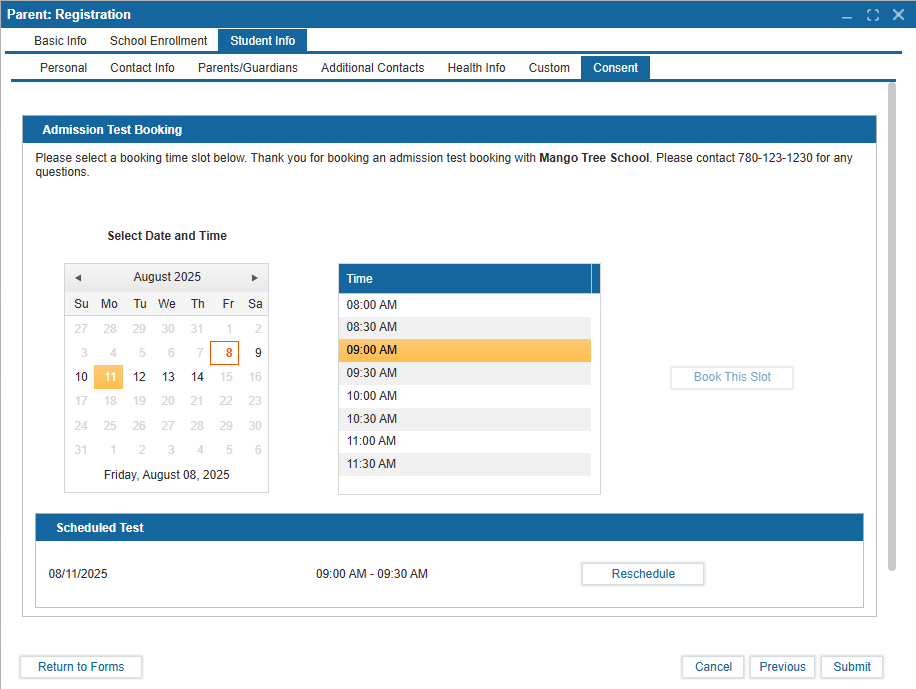
- Consent is there the user can select Admission Test Booking slots and consent to FOIP
- School Enrollment completes the review of the registration. Click Enroll to admit the student into your school and create an enrollment record.
¶ Creating a Student
To create a student enrollment, select New Registration. Then, follow these steps:
-
Submit a search using First Name or Last Name to see if the student exists.
-
Review the results.
-
Select Register Student if student already exists.
-
Select Create New Student if this student does not appear in search results.
-
Populate the Create Student page and select Next once the identity field and acknowledgement are appropriately populated.
-
Select relevant Grant Programs, Enrollment Types or Exception Codes.
-
Enroll student.
-
Registrations cannot be saved partially. Upon populating all or some of the relevant fields, you must Cancel or Enroll if you do not wish to enroll this student.
-
To register a student that already exists within your district, select Register Student. Confirm the appropriate grade and enrollment year and then an enrolment record will be created for them.
¶ Admission Test Booking
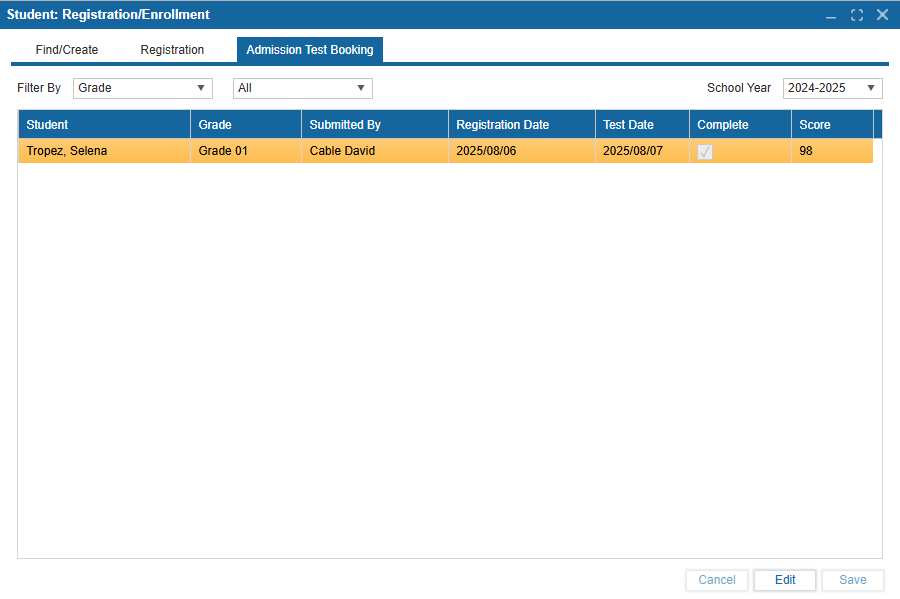
Admission Tests may be used by a school to ensure applicants meet a set criterion for the school's instructional focus. The Admission Test Booking tab is comprised of one table displaying all students admission test details. This table populates with students who have been enrolled and have registered for an admission test. You may filter by Grade, Registration Date, or Test Date and can also view other school years using the dropdown on the right. Selecting the table headers will allow you to sort the records however you choose.
Once an Admission Test is set up in System Configuration, the option to book a test appears on the public portal during registration. When a student is enrolled, the slot they selected during registration will appear in the Admission Test Booking Tab, where you can update the Score and if has been Completed using the checkbox.
¶ Set Up Admission Test
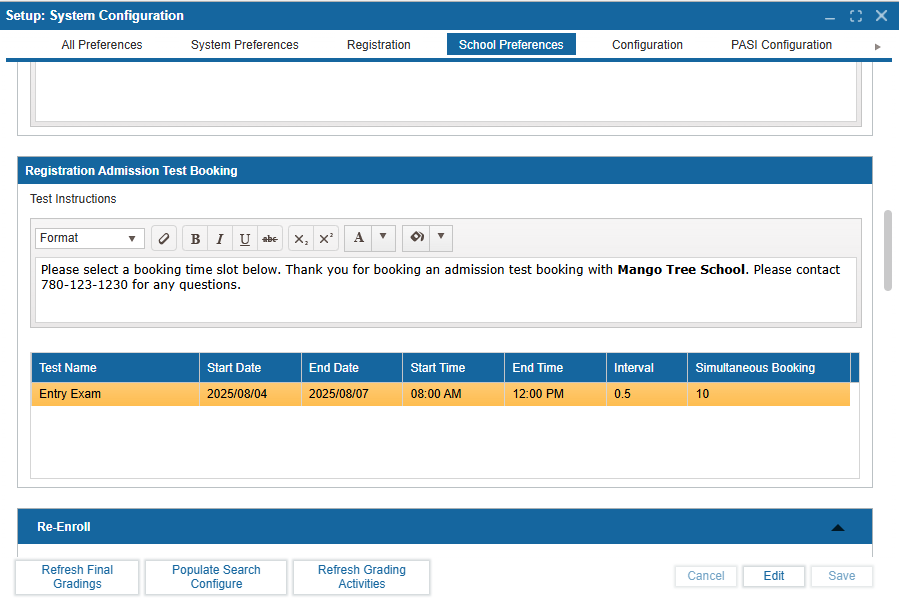
To setup an admission test booking, navigate to Setup: System Configuration: School Preferences.
- Click Edit.
- In Test Instructions, enter an instructional message for public users to see. You may format this message however you desire using the toolbar in the textbox.
- Create a Test Booking slot (s) by selecting the (+) icon at the top of the table. Each Test Booking record consists of:
- Test Name - the name of the test
- Start Date - first day the test is offered
- End Date - last day the test is offered
- Start Time - the earliest time an test can start
- End Time - the latest time an test can end
- Interval - the length of the test slot in hours (a 30 minute exam slot would be entered as 0.5)
- Simultaneous Booking value - number of students that can be booked during the same time
- Click Save.
Once the student is enrolled, an Admin user can view a record of the test and add its score in Registration/Enrollment: Admission Test Booking.
In the Public Portal, the booking appears as shown in the image below.