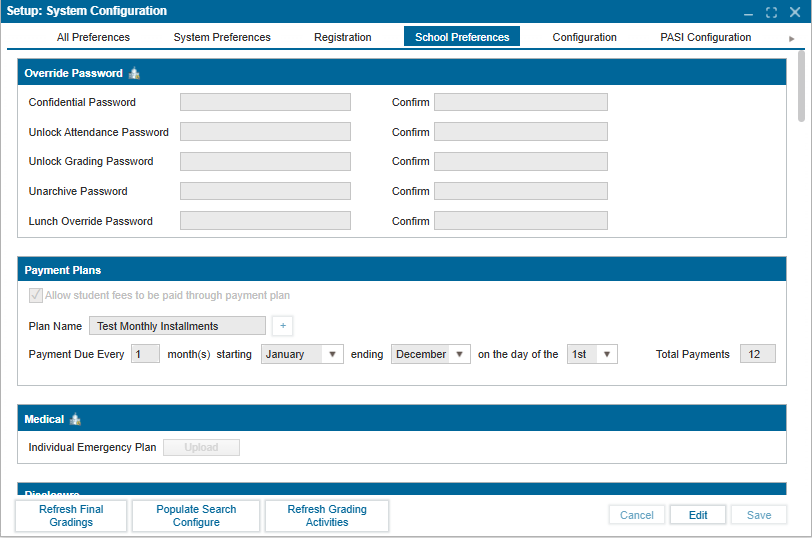
¶ School Preferences
The School Preferences tab is where specific school configurations are set up.
¶ Setting Up or Modifying School Preferences
- Navigate to Setup >> System Configuration.
- Click Edit to make changes.
¶ Override Password
For added security, a password may be set to prevent unwanted changes.
- Enter the Password.
- Confirm by entering the password again.
- Click Save to confirm changes.
¶ Payment Plans
This setting allows students to make installment payments.
- Check the checkbox: "Allow student fees to be paid through payment plan".
- Enter the Plan Name. To add more plans, click the "+" button.
- Enter the payment schedule (start date, month, end month, and date). This updates the "Total Payments" field.
¶ Medical
The Individualized Emergency Plan (IEP) for each school can be uploaded here.
- Click the Upload button in Edit mode to upload a file.
¶ Disclosure
This setting enables the Disclosure Restriction checkbox in the Search functionality.
¶ Student Name Display
- Toggle between the two radio button options to format the student's name display.
- Click Save to confirm changes.
¶ Register Message
This is the message parents receive when a student registration is successful.
- Enter the Registration Successful message.
- Click Save to confirm changes.
¶ Reject Message
This is the message parents receive when a student registration is unsuccessful.
- Enter the Registration Unsuccessful message.
- Click Save to confirm changes.
¶ Registration Admission Test Booking
This section allows schools to enable admission test booking, so parents can schedule a date and time for their children during the registration and enrollment process.
¶ Re-Enroll
To set up Re-Enroll:
- Check the Enable checkbox.
- Enter the Description (re-enroll instructions or other information).
- Specify the questions by entering the question title and question type.
- Set the question as Required or Optional by toggling between "Yes" and "No" radio buttons.
- Click the "+" button to add additional questions.
- Click the Trash icon to delete a question.
¶ Withdrawal
To set up Withdrawal:
- Check the Enable checkbox.
- Enter the Greeting Prompt.
- Enter the "Thank You" prompt.
- Enter the necessary questions, specify the question type, and indicate whether the question is Required.
- Click the "+" button to add additional questions.
- Click Save to confirm changes.
¶ ISMS Color
The school banner, background, and font colors can be customized here.
- Check the checkboxes to reset to ISMS default colors.