¶ Student Lunch
Collectively, the Lunch-related features are intended to allow the school to run a successful cafeteria. Functionality includes creating a menu, purchasing items, pre-loading account balances, setting allergies, and more.
The Student: Lunch feature contains the lunch-relevant information for individual students.
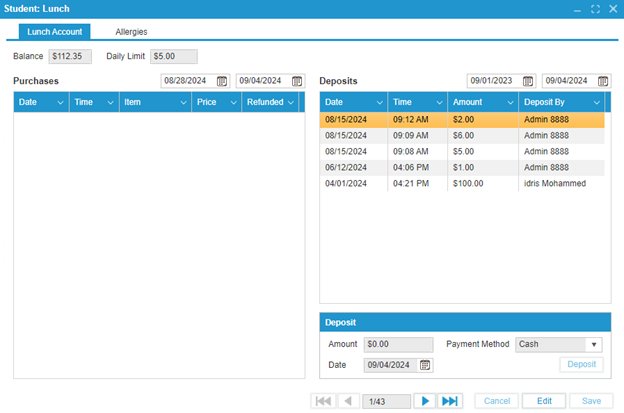
The Lunch Account tab holds both the Purchase History and the Deposit History for the student. Admin users can also add money to the student’s lunch account from this screen.
Parents and students can also see this tab from the public portal, and can also add money to the student’s account.
Version: 252 Updated: February 4, 2025
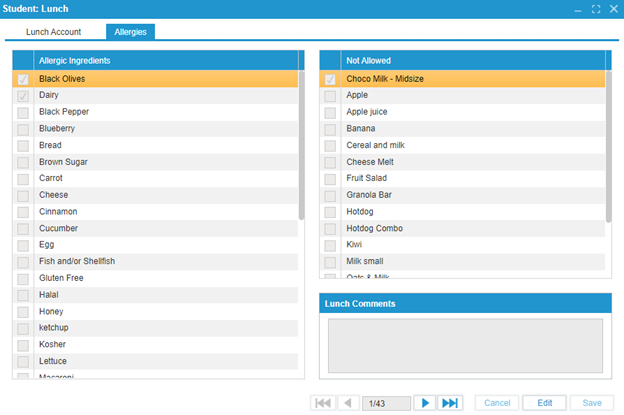
Student allergy information can be set from either the Student: Lunch: Allergies tab or the Student: Health: General tab.
(Currently, the Allergies functionality in Student: Health is not linked to that in Student: Lunch. However, the plan is to link the two, so if an allergy is added in one place, it will also appear in the other.)
If there are no options to add allergies in Student: Lunch, this is because no ingredients have been created yet. To add ingredients, go to Administration: Lunch: Ingredients. If the student tries to check out a food that contains an allergen, the system will not allow it. This cannot be overridden. In order for this feature to work, the ingredients need to be added to each food in Administration: Lunch.
On the right side, there is a ‘Not Allowed’ table. This allows the admin or parent user to set certain foods as not allowed. When the student tries to check out a food that is not allowed, the system will not allow it. The banned food can be checked out by using the Lunch Override Password (Setup: System Configuration: School Preferences). If there are no foods available in the Not Allowed table, this is because there are no foods that have been created in the school menu (School: Administration: Lunch Item).
Version: 252 Updated: February 4, 2025