¶ Student Documents
¶ Accessing and Managing Documents
All documents uploaded to a student’s profile are accessible through the Student: Documents section.
¶ Viewing a Document
- Navigate to Student: Documents. This will open a search function, displaying a list of student names.
- Select the student’s name to access their associated documents.
Documents can be filtered by category to display specific types. You can also select "All" to show all available documents for that student.
If a document has been marked as "Relevant" in its details, use the Relevant Only checkbox to filter and display only those documents.
¶ Downloading a Document
- Check the boxes next to the documents you want.
- Click the Download button. If multiple documents are selected, they will be zipped into a single file for download.
¶ Editing a Document
- Click Edit.
- Make changes to the fields that are not greyed out.
- Click Save to confirm changes.
¶ Uploading a New Document
To upload a new document:
- Navigate to
Student > Documents. - Click “New”.
- Fill in the details in the Details tab (complete all non-greyed out fields).
- Upload the document by clicking the “Select File” button.
- Click Save to confirm changes.
¶ Details Tab
The Details tab is used to enter information for new documents. Complete the following fields to upload a document:
¶ Document Information
- Category Dropdown: Select the category the document belongs to.
- Doc Type: Choose the type of document (this is streamlined based on the selected category).
- Doc Title: Enter a title for the document (this field is required).
- School Year: Defaults to the current academic year.
- Language: Defaults to English.
- Linked to Org: Select the associated school.
- Doc Date: Defaults to the current date.
- Expiry Date: Required if the document has an expiration date.
- Disposal Date: Enter the date when the document will be disposed of.
- Digitized: Indicate if the document was digitized (e.g., scanned).
- Relevant: Indicate if the document can be used to make decisions for students.
¶ Document Image Information
- File Name: Name of the document file.
- Created by Org: Name of the school.
- Upload Date: The date the document was uploaded.
- QA Exempt: Indicates if the document is exempt from quality assurance.
- QA Performed: Indicates if quality assurance was performed.
- Text Searchable: Indicates if the text within the document can be searched.
- Reference: A randomly generated string of numbers and letters for document identification.
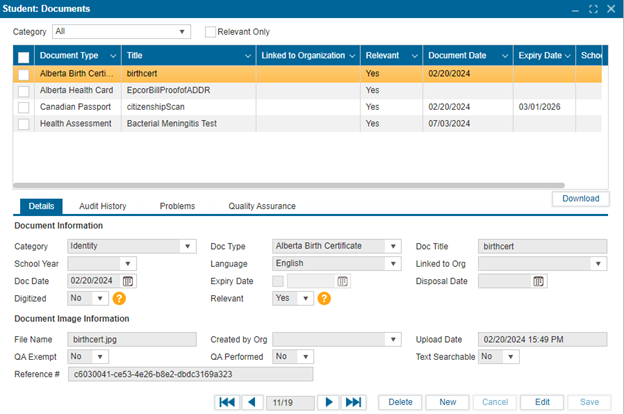
Note: Audit History, Problems, and Quality Assurance tabs are PASI required tabs.