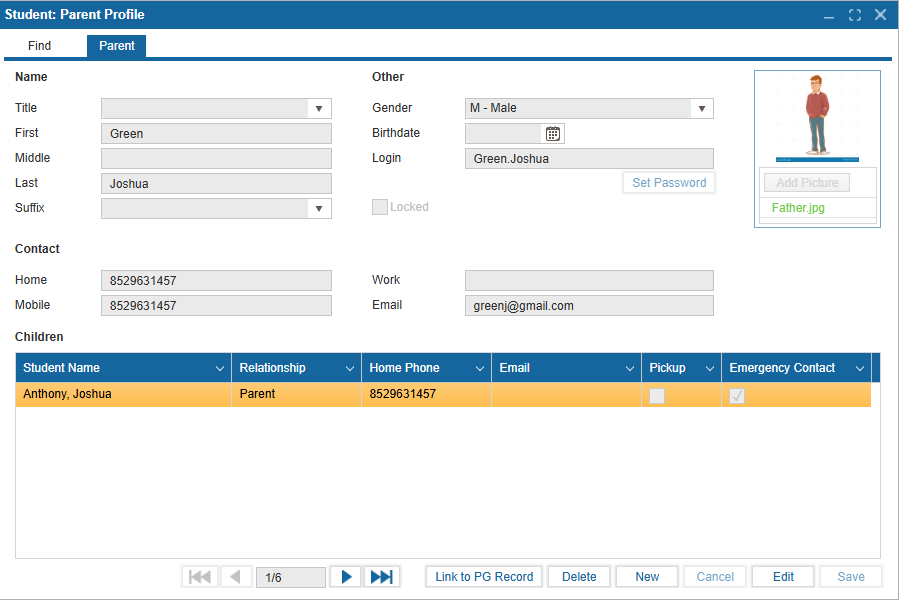
¶ Parent Profile 👨👩👧👦
The Parent Profile feature is the central hub for managing parent and guardian login information in the system. It provides:
- 📁 Separate profiles for each parent/guardian.
- 🔐 Parent access to log in and edit specific profile fields.
- 🔎 Search functionality to quickly locate parent accounts.
- 👨👧 Options to view and manage parent-child relationships from both Student and Parent profiles.
- 📝 Additional fields to capture detailed parent information.
¶ Connection to Student Profile: Parent/Guardian 🔗
The Parent Profile feature integrates with the Student Profile as follows:
- When a Parent/Guardian record exists for a student with the relationship set to Parent, a corresponding Parent Profile is automatically created.
- The Create Parent Profile button allows manual creation of a parent profile account.
- The Link to Parent button in the Student Profile links an existing PASI record to a Parent Profile, even if it is not tied to a specific student.
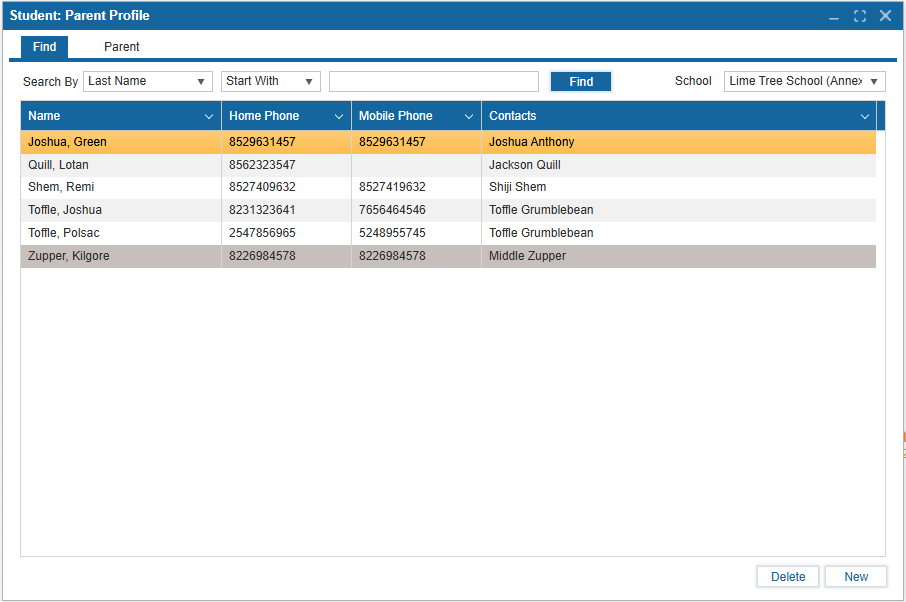
¶ Find Tab 🔍
- Search – Use the desired filter and click Find to display results based on the selected criteria.
- Delete – Select a record and click Delete to remove it.
- Create New Profile – Click New and:
- ✍️ Enter the parent’s name and contact details.
- (Optional) If the student already has a Parent/Guardian (PG) record, click Link to PG Record, select the student from the search results, and the student will be added to the parent’s Children section.
- 💾 Click Save to finalize the new profile.
¶ Parent Tab 🧾
- ✏️ Click Edit to make changes to the selected parent profile.
- 🚫 Use the Locked checkbox to prevent access from the public portal.
Note:
- When a new Parent Profile is created and is not yet linked to any student, it will only appear in search results if All is selected in the School field under the Find tab.
- Once the parent registers a child with the school, their profile will then appear in the list of available Parent Profiles for that school.
- The Link to PG Record button allows linking to a PASI parent if that parent already exists in the student’s PASI profile.