¶ Student Health
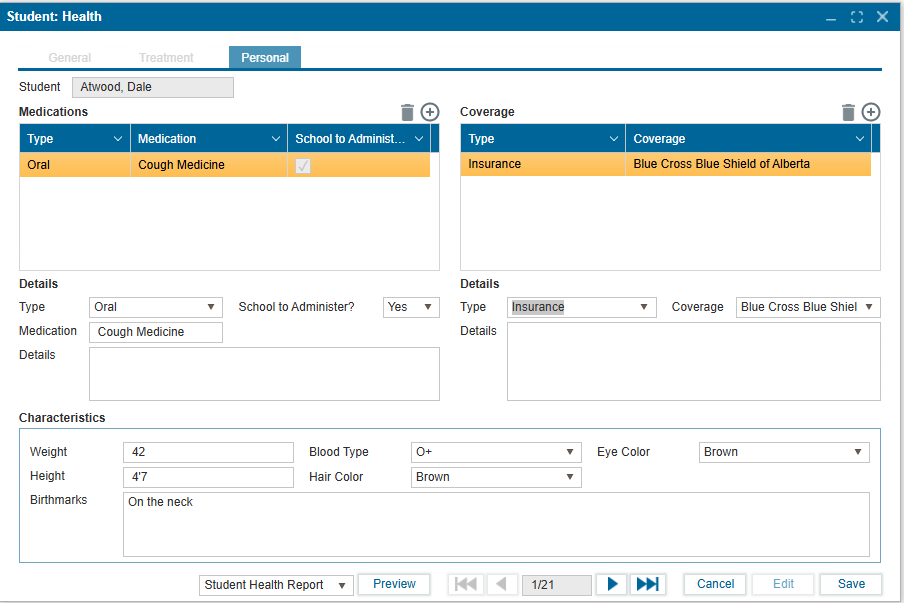
The Student Health feature is the central record for all student health and neurodiversity information. It is divided into three main tabs:
-
General (Alerts) – Records allergies, illnesses, and mental/neurodiversity conditions.
- Syncs with PASI: Any updates automatically update the student’s medical alert record in PASI.
-
Treatment – Logs immunizations, treatments, and injuries administered while at school.
- Used for internal school record-keeping only (not synced to PASI).
-
Personal – Stores medications, insurance coverage, and physical characteristics (e.g., weight, height, blood type).
- Supports medication administration tracking and updates to student biodata.
Additionally, a Student Health Report can be generated to provide a complete snapshot of the student’s health records, including conditions, treatments, and personal details.
The Alerts table records medical conditions and neurodiversity information for the student.
This is the only health tab that syncs with PASI, meaning any changes here automatically update the student’s Medical Alert record.
¶ To Add a Medical Condition:
- Select the student from the search result.
- Click the “+” icon above the Alerts table to add a new record.
- In the Details section below:
- Select the appropriate Type (e.g., Allergy, Illness) from the dropdown.
- Additional fields may appear based on the selected type.
- Enter all required details (Note, Date, Details, etc.).
- Click Save to confirm.
¶ To Edit an Existing Alert:
- Click Edit, update the information, and click Save.
Notes:
- Use the Preview button at the bottom to view the Student Health Report.
- Navigate between students using the arrow buttons next to the Preview button.
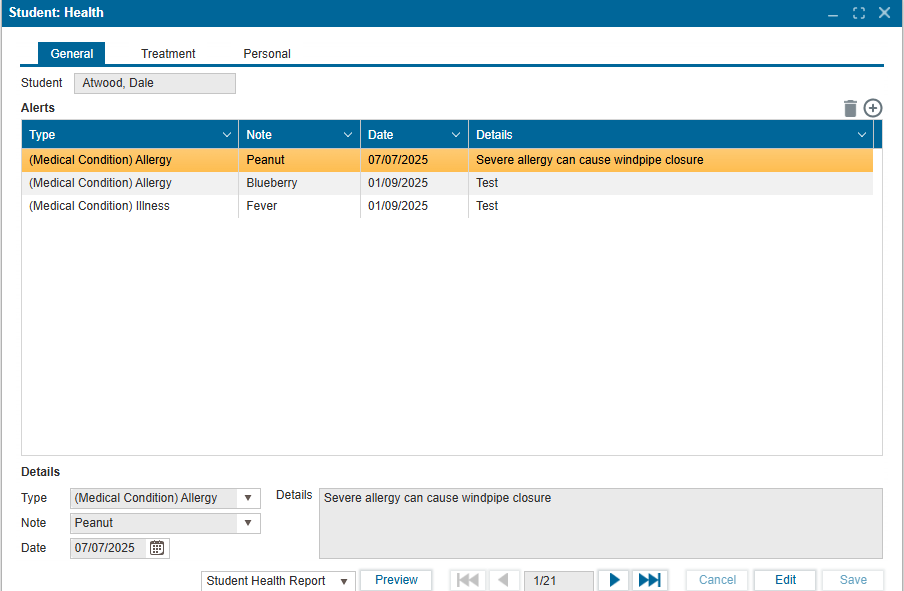
The Treatment tab is used to record any treatments, injuries, or immunizations administered to the student while in school.
¶ To Add, Update, or Delete a Treatment Record:
- Click Edit to enable changes.
- To add or update:
- Click the “+” icon to create a new record.
- Select the appropriate Type (Treatment, Injury, Immunization) from the dropdown list in the Details section.
- Enter the Treatment type, Treatment date, and any additional Details.
- Repeat this process for each treatment administered.
- To delete:
- Select the existing record you wish to remove.
- Click the trash icon.
- Click Save to apply changes.
Notes:
- If the dropdown list is empty, it means no values have been provided yet.
- To create or modify dropdown values, navigate to Setup → Parameters 1 for guidance on creating new dropdown values.
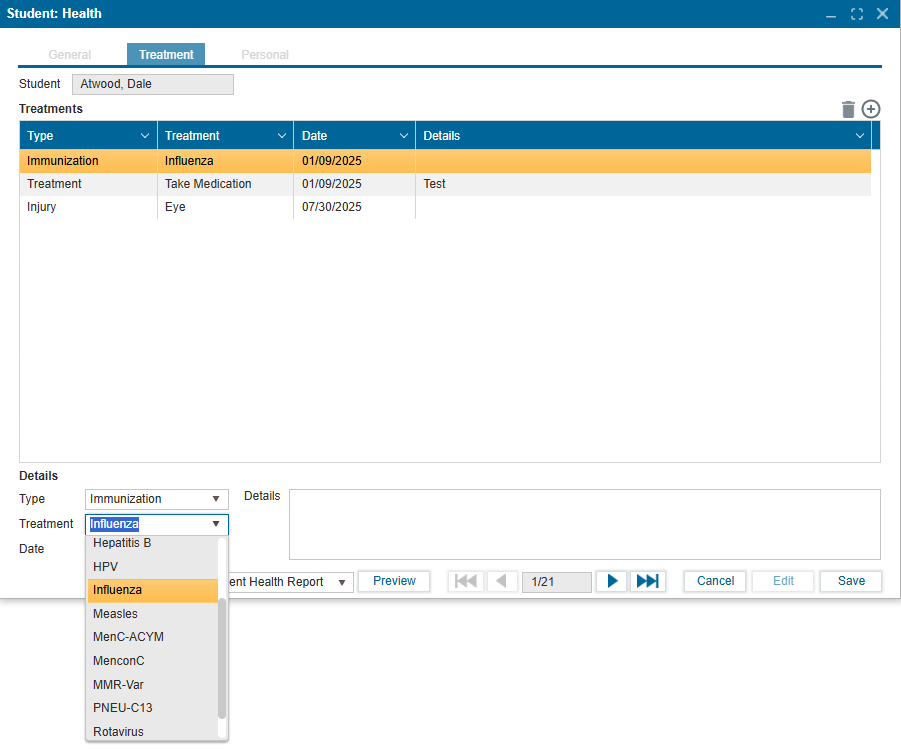
The Personal tab is used to manage:
- Medications the student is taking
- Insurance coverage details
- Biodata (weight, height, blood type, etc.)
¶ To Update or Delete a Student’s Personal Health Information:
- Click Edit to enable changes.
- To add or update:
- Use the “+” icon to add new entries under Medications or Coverage.
- Select the Type (e.g., Oral, Insurance) and enter details from the dropdown list. (Dropdown options are configured in Setup:Parameters 1)
- Update Characteristics (weight, height, blood type, etc.) if needed.
- To delete:
- Select the existing record under Medications or Coverage.
- Click the trash icon to remove it.
- Click Save to apply changes.