¶ Staff Profile
The Staff Profile feature serves as the centralized repository for comprehensive employee information. It houses essential details such as personal data, contact information, emergency contacts, and professional background, including previous teaching experience. This module is designed to streamline access to critical staff data for various administrative and operational functions.
This feature has 4 main tabs. Click on the tabs below to see the user guide:
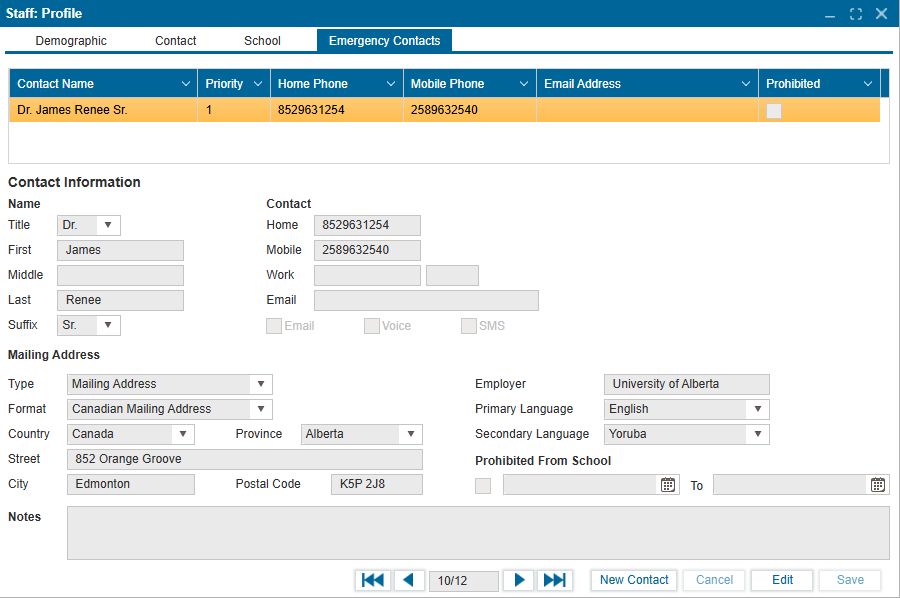
The demographic tab provides a quick overview of essential staff information.
¶ Editing Information
- Click the Edit button.
- Make changes to the fields that are not greyed out.
- Click Save.
¶ Adding a New Name
- Click the Edit button.
- Click the “+” symbol in the Name section at the top of the page.
- Enter the preferred last name, middle name, first name, and suffix (if needed).
- Click Save.
¶ Password Change/Reset
Admin can reset passwords if a staff member is locked out of their account. There are two methods:
-
Change Password:
- Click the “Change Password” button.
- A pop-up window will prompt you to enter a new password. This will be the new password for the user.
-
Reset Password:
- Click the “Reset Password” button.
- This sends a temporary password to the user. The user can log in with this temporary password and change it to a new one afterward.
¶ Adding a Flag
- Click the “+” button in the Flags section dropdown arrow in the Flags grid and select Add.
- Choose the flag from the dropdown list.
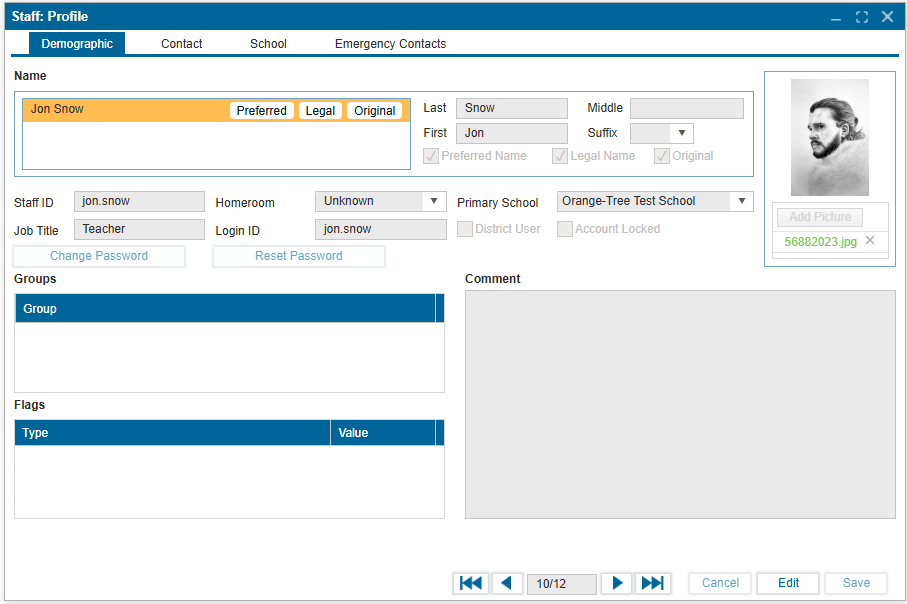
The Contact tab is used to maintain detailed contact information for all staff members.
¶ To Add/Delete a Contact for a Staff Member
-
Search for the staff member using the search functionality, ensuring the staff option is selected.
-
Select the desired staff member from the search results list.
-
Click on the Contact tab.
-
Click Edit.
-
To add a phone number, address, or email, click the “+” icon in the respective section.
-
To delete a record, select the record from any of the sections and click the trash icon at the top of that section.
-
Click Save to confirm changes.
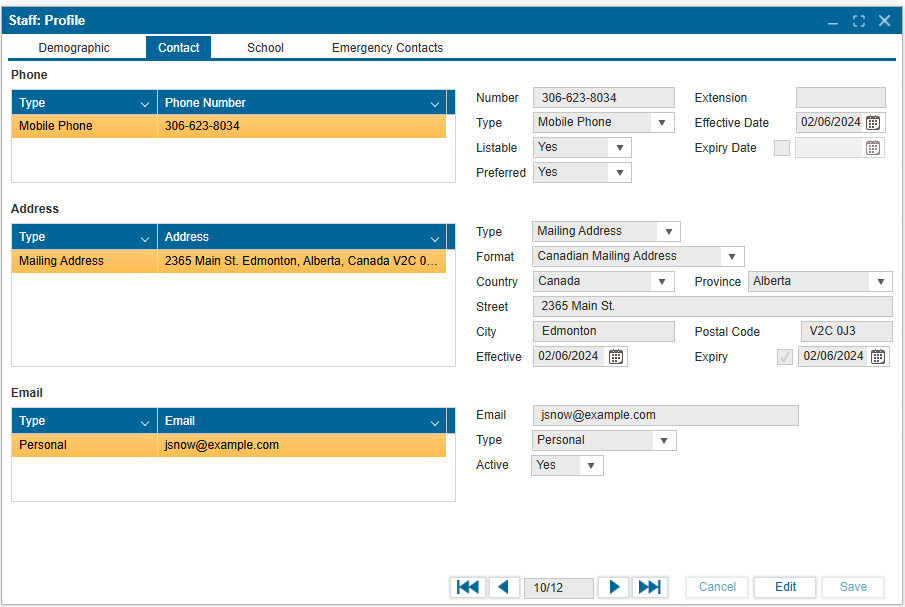
The School tab displays key staff information, including:
- Date of birth and birth city
- Account status
- Previous work experience
- Assigned roles
¶ Adding or Editing Information
- Click Edit to enter or update staff details.
- Fill in the required fields (e.g., birth details, account status).
- To add previous work experience:
- Click the “+” icon in the Previous/Secondary Schools section.
- Click Save to confirm changes.
¶ Assigning Roles
- While in Edit mode, click the “+” icon in the Roles section.
- Select the appropriate role(s) from the list.
- Click Save to apply the assignment.
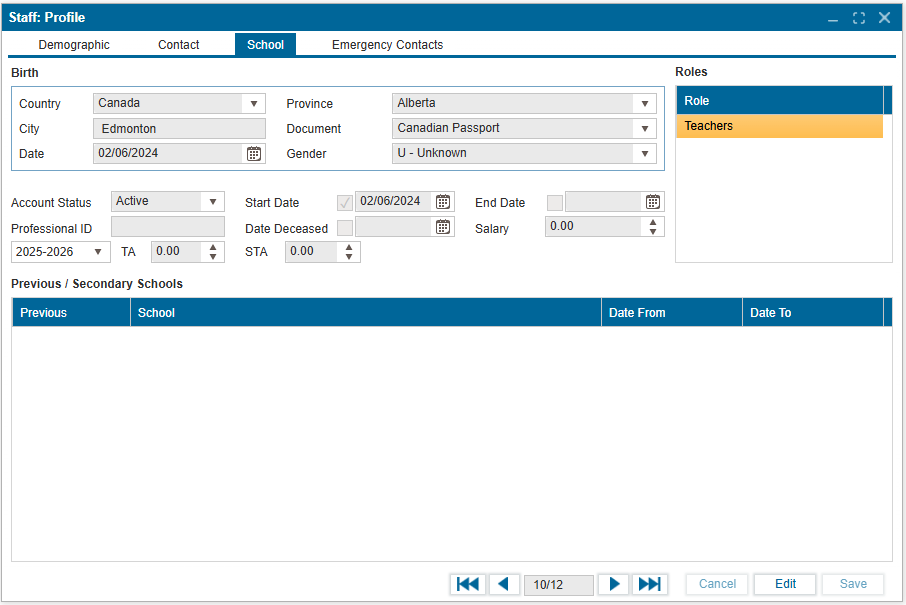
The emergency contacts tab is used to add emergency contact information to the staff profile. More than one emergency contact can be added.
¶ Adding Emergency Contact Information to a Staff Profile
- Search for the staff member using the search functionality, ensuring the "Staff" option is selected in the search window.
- Select the desired staff member from the search results.
- Click on the "Emergency Contacts" tab.
- Click "Edit."
- Click "New Contact."
- Enter the emergency contact information.
- The priority is set automatically based on the order of entry, with the first contact having the highest priority.
- Click "Save" to confirm and store the information.