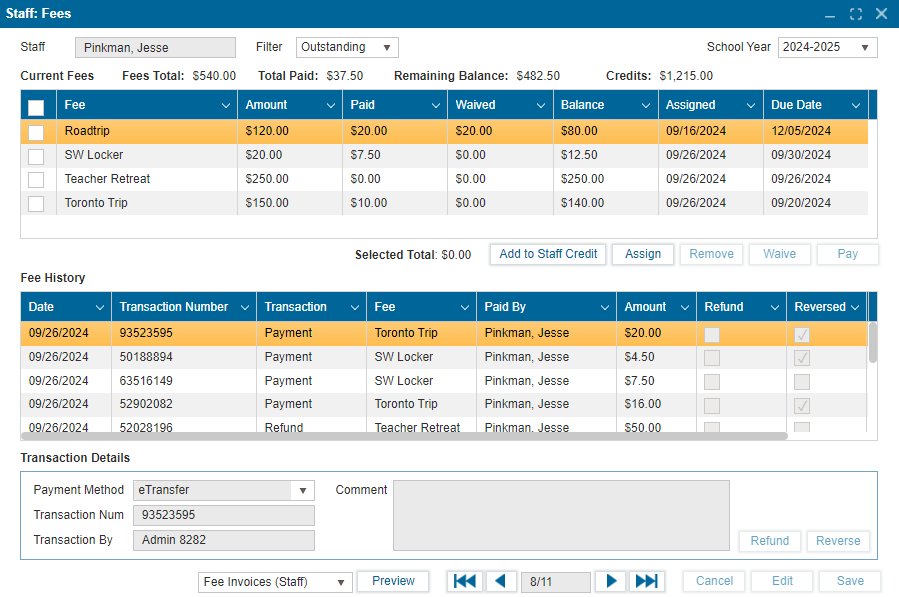
¶ Staff Fees
- Navigate to Staff >> Fees.
- If the only name showing is the name of the Admin:
- Click Search.
- Select Staff radio button.
- Click Find to provide the full list of staff members.
- Select the Staff Member from the list.
¶ Filtering Fees:
- In the Filter field, click the dropdown button.
- Select either Outstanding or Paid to update the list based on the filter.
¶ Adding Credit to Staff Credit:
- In Staff Fees, click Add to Staff Credit button
- In the popup window, enter the desired amount in the Amount field.
- Click the OK button.
- In the Process Payment popup window, enter the credit card information.
- Click Submit.
- The new transaction should appear in the Fee History table, and Credits on top of the table will be updated with the new fee amount.
¶ Assigning a Fee to Staff:
- Click the Assign button.
- In the Assign Fee popup, select the fee using the checkbox and click OK.
- The fee will be added to the list of fees immediately.
¶ Removing a Fee:
- Use the checkbox to select the fee.
- Click Remove.
- Confirm with Yes.
¶ Waiving a Fee:
- Use the checkbox to select the fee.
- Click Waive.
- Enter the amount to be waived in the Waive field (full or partial amount).
- Click OK.
- This transaction updates the Current Fees and Fee History table accordingly.
¶ Paying Fee(s):
- Use the checkbox to select the fee(s).
- Click Pay.
- In the Pay Fee popup window:
- Select the payment method.
- Enter the amount to be paid in the Payment column.
- Credit and debit card payments will require card information.
- To use Staff Credit, enter the amount in the Use Credit $... column.
- Click OK.
- The completed transaction will reflect in the Fee History table.
¶ Refunding a Fee:
- In the Fee History table.
- Select a transaction and click Refund.
- Confirm the refund.
- Select the refund payment method.
- Click OK.
Note: Payments made with staff credit can only be refunded as staff credit. Payments made through other methods can be refunded through any payment method.
¶ Reversing a Fee:
Verify the process.
¶ Reports:
- Use the Preview button to view the selected report from the dropdown list.