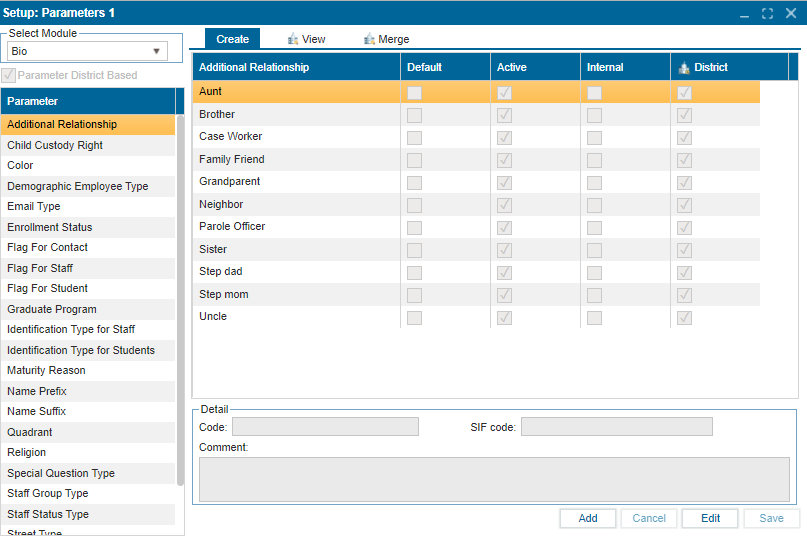
¶ Parameters 1
Parameters 1 is a feature that enables users with administrative access to configure and define the values that appear in dropdown lists across the entire system. This provides centralized control, ensuring consistency and standardization of dropdown options for all users. Admins can easily update or modify these values, which are then applied universally, streamlining the process for managing system-wide dropdown lists.
This setup offers flexibility for administrators to tailor dropdown menus to fit specific needs while maintaining a unified user experience.
¶ Managing the Parameters
¶ To create new parameters:
- Navigate to Setup >> Parameters 1
- On the Create tab, use the dropdown field under Select Module to choose a module.
- On the left-hand side, select the parameter to create new values for.
- Click Add.
- Enter the new value in the newly created record row.
- Use the Checkbox to setup the parameters
- Check the Active checkbox to ensure the value shows up in the parameter.
- The District checkbox is checked by default.
- Check the Default checkbox to make this value the default in the parameter.
- Add any additional information about the parameter in the Detail section.
- Click Save to confirm changes.
¶ To delete a parameter:
- In Setup >> Parameters 1
- In the Create tab, select the module.
- Select the parameter.
- In Edit mode, click the trash icon beside the parameter.
¶ To view a parameter:
- In Setup >> Parameters 1
- In the View tab, select the module and parameter to view the values in each parameter.
¶ To merge parameters:
- In Setup >> Parameters 1
- In the Merge tab, select the module and parameter.
- Using the checkbox, select the values to match from both the Source and Destination tables.
- Click Merge Into to merge; the value in the Source table will disappear.
- Click Substitute Value Only to change values.