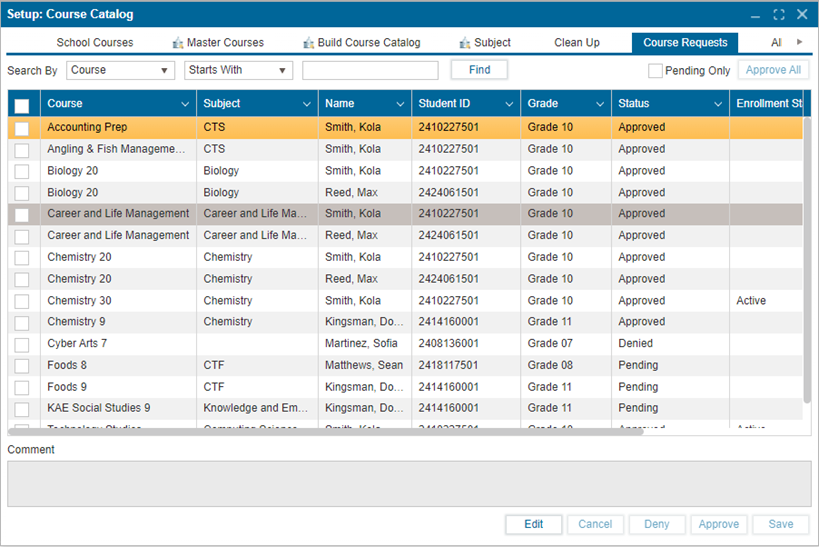
¶ Admin-Course Requests
This feature provides a unified course request summary screen for admin users to review and make decisions on student-submitted course requests. It integrates with the Class, Homeroom, CTS, and Student: Course Requests features. The Course Request tab in Setup: Course Catalog displays all student-submitted course requests that are pending a decision. Any approvals or denials made on this screen will automatically update the status on the students’ screen as well.
¶ Actions Buttons:
There are 5 actions that admin users can perform when deciding on course requests:
-
Approve All:
After course requests are submitted, use the search function to filter records. In edit mode, click the "Approve All" button to approve all requests at once. -
Approve Multiple Records:
In edit mode, use the checkboxes to select multiple records. Click the "Approve" button to approve the selected requests. -
Approve Individual Record:
In edit mode, select a single record and click the "Approve" button to approve that specific course request. -
Deny Multiple Records:
In edit mode, use the checkboxes to select multiple records. Enter a comment stating the reason for denial (e.g., "Pre-requisite needed"). The comment will apply to all selected records. Then, click "Deny". -
Deny Individual Record:
In edit mode, select the individual record (no checkbox needed). Enter the reason for denial in the comment box and click "Deny".
Once a decision is made on the course request, the status will also update on the student's portal.