¶ Office Grading
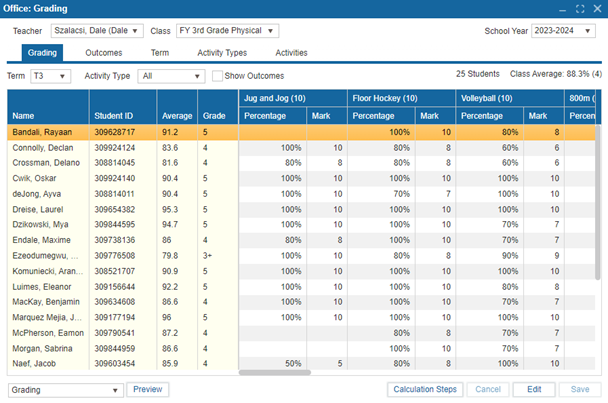
This tab provides a summary view of all the students in a class, alongside their marks for every activity in the selected term. The tab consists of dropdowns, summary metrics, and a main table.
¶ Table Columns:
- Name – The student’s name
- Student ID – The student's ASN
- Average – The student's percentage average for all activities in the selected class for the selected term
- Grade – The student's percentage average converted into a letter or number grade, based on the grading scheme selected in Setup: Initial Setup (grading schemes are configured in Administration: Grading Comments & Schemes)
- Activities – The remaining columns correspond to each of the activities assigned to students in the selected class for the selected term. Each activity has two subcolumns:
- Percentage – The percentage the student obtained on the corresponding activity
- Mark – The number of points the student obtained on the corresponding activity
¶ Editing Marks:
Marks for each activity can be set and adjusted from this tab by clicking Edit.
¶ Other Features of the Grading tab:
- Term Dropdown – Filters the activities shown in the main table based on the terms for which the class runs. If the grade is set to accumulate, there will also be an ‘All’ option.
- Activity Type Dropdown – Filters the activities shown in the main table based on the activity types (depends upon the term selected).
- Show Outcomes Checkbox – Displays the outcomes for the selected student (depends upon the term selected).
- Student Total Count – Displays the total number of students in the class.
- Class Average – Shows the class average in both percentage and points.
- Report Dropdown – Allows you to select from various reports.
- Calculation Steps Button – Displays how the final mark is calculated.
Version: 252 Updated: February 4, 2025
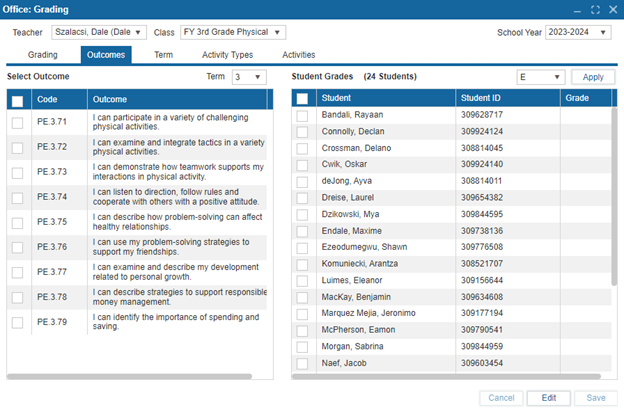
The Outcomes tab allows teachers to assign outcome grades to their students. This tab consists of two main tables, a term dropdown, and a bulk marking feature. Outcomes are set up and configured in Administration > Outcomes.
¶ Key Features:
- The Term dropdown allows you to change which outcomes are available for marking, as outcomes can be term-dependent.
- The left table displays the outcomes, showing both the code and description.
- The right table displays the students, including both names and ASNs.
¶ Marking an Outcome for a Student:
- Select an outcome from the left table (checkboxes not required).
- Click Edit.
- Click on the respective row in the Grade column in the right table to assign the grade.
¶ Bulk Marking:
-
To mark multiple outcomes for a student:
- Select the desired outcomes using the checkboxes in the left table.
- Select the desired student using the checkbox in the right table.
- Select the desired outcome grade in the outcome dropdown at the top right.
- Click Apply.
-
To assign the same outcome grade to multiple students:
- Select the desired outcome using the checkbox in the left table.
- Select the desired students using the checkboxes in the right table.
- Select the desired outcome grade in the outcome dropdown at the top right.
- Click Apply.
Version: 252 Updated: February 4, 2025
¶ Term and Weight Settings
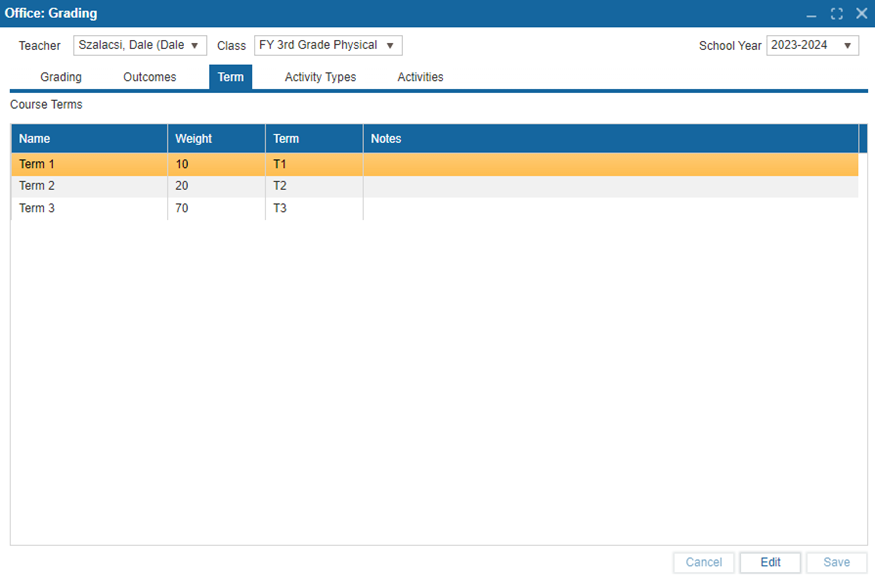
- If the class is set as Full Year, the number of terms in this tab will match the number of terms in the school year.
- If the class is set for a Single Term, there will only be one term in this tab.
¶ Accumulate Setting:
- Accumulate: No – The term weights will be set to 100 and cannot be changed.
- Accumulate: Yes – The term weights can be adjusted to different values (the sum of all values should equal 100). When terms have unequal weights, all activity grades will be weighted relative to the other terms based on the entered term weight values.
¶ Example of Unequal Term Weights:
- If there are 3 terms in a school year, and they are weighted as 20 (T1), 30 (T2), and 50 (T3), and the student obtained a grade of 100% (T1), 80% (T2), and 70% (T3), the final grade for that student would be calculated as:
(0.2 * 100) + (0.3 * 80) + (0.5 * 70) = 79%
Version: 252 Updated: February 4, 2025
¶ Creating Activity Types
Before activities can be created, at least one activity type must be set up. Activity types provide flexibility and organization, allowing different types for each term. You can also import activity types from another class using the Import button.
¶ Key Features of Activity Types:
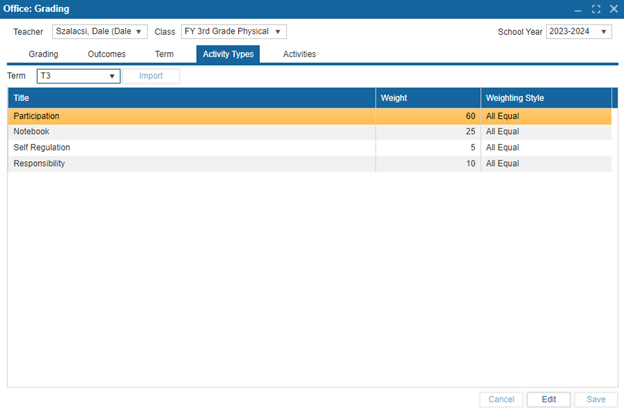
- Each activity type has a name, weight, and weighting style.
- Any number of activity types can be created, but their weights must add up to 100.
- The grades from each activity type are combined in a manner similar to term weights.
¶ Example:
Let’s say a class has 4 activity types:
- Essays (30%)
- Tests (40%)
- Pop Quiz (10%)
- Presentations (20%)
If a student receives grades of 100%, 50%, 65%, and 85% in these activities, their final grade would be calculated as follows:
(0.3 * 100) + (0.4 * 50) + (0.1 * 65) + (0.2 * 85) = 73.5%
¶ Weighting Styles:
Activity types also have a weighting style, which determines how the combined grade for that type is calculated based on individual activities. The weighting style does not affect how an activity type interacts with other types but only within the type itself.
There are two weighting styles:
- All Equal: All activities within the activity type are weighted equally.
- Manual: The user manually sets the weight for each activity.
The weight of each activity is defined in Office > Grading > Activities > Detail. These weights should also add up to 100.
¶ To Create Activity Types:
-
Navigate to Office > Grading.
-
Select the School Year, Teacher, and the Section from the dropdown list.
- If you are logged in as a teacher, only your own name will be listed.
-
Select the Activity Types tab.
-
Choose a Module from the Module dropdown.
-
Click Edit.
-
To add an Activity Type:
- Click the dropdown arrow on the grid and select Add.
-
Enter the title of the Activity Type.
-
Enter any notes about the Activity Type in the Notes field.
-
Assign a Weighting Style for the Activity Type. Weighting styles are:
- All Equal: All activities of a given type in a module have equal weight.
- Reflect Points: Weight is proportional to the number of points the activity is worth.
- Manual: The weight of each activity is specified manually.
-
Assign the Weight for the activity type.
- The total weight of the Activity Types must equal 100.
-
Click Save.
-
Repeat these steps for additional modules.
Version: 252 Updated: February 4, 2025
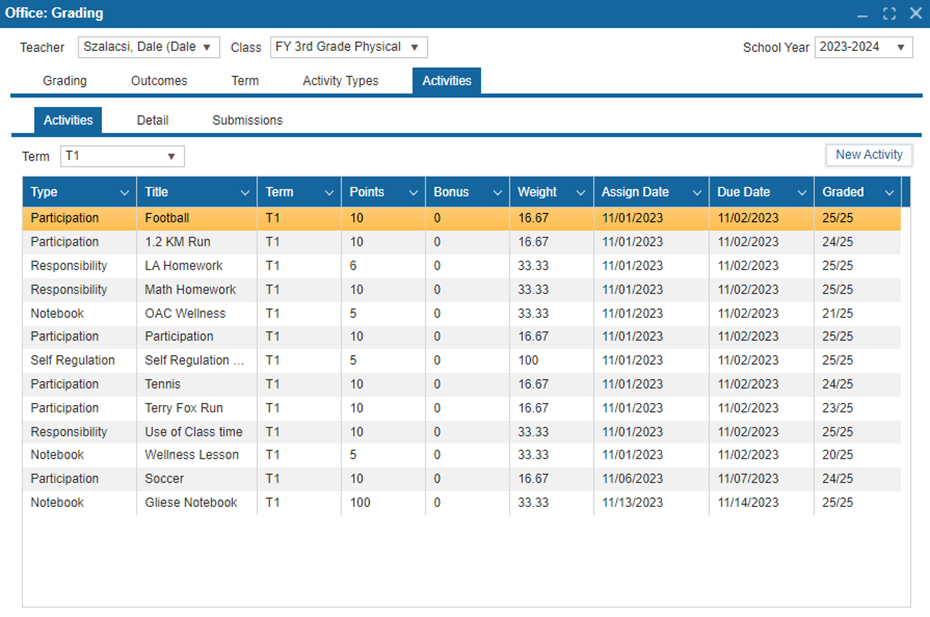
The Activities subtab has a dropdown and one main table. The dropdown displays the terms for which the selected class runs, and the term selected in the dropdown determines what data is shown in the table. The main table displays all activities created for the selected term. Once at least one activity type has been made in the previous tab, individual activities can be created. Click on the New Activity button on the Activities subtab to begin.
¶ Details Subtab
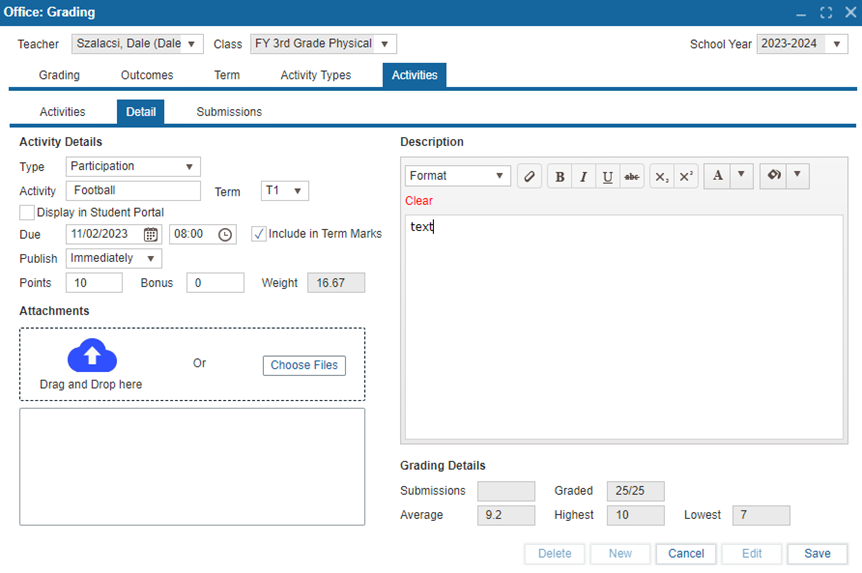
This subtab is used to create new activities. Each activity has:
- Type – the activity type for the activity
- Activity – the name for the activity
- Term – the term in which the activity will be completed – this field is influenced by which term is selected in the term dropdown on the Activities subtab
- Display in Student Portal – determines whether or not the activity will be seen by students from the public portal (Student: Assignments feature)
4.1. If this checkbox is checked, another checkbox will appear called Allow Online Submission – this determines whether the student can submit the activity online through the Student: Assignments feature - Due – the due date for the activity
- Include in Term Marks – determines whether or not the activity’s grade will be included in the report card grade (i.e., formative vs. summative)
- Publish – determines when the activity (Student: Assignments feature) and its grades (Student: Grading feature) will be available:
7.1. Immediately – the activity will be available to the student as soon as it is saved (assuming Display in Student Portal is checked), and the grades will be available as soon as they are entered
7.2. Select Date – the activity will be available after the selected date (assuming Display in Student Portal is checked), and the grades will be available after the selected date and as soon as they are entered
7.3. Never – the activity will never be available to the student from the Assignments feature, and the grades will never be available from the Grading feature (in order to show the grades but not the assignment, leave the Display in Student Portal as unchecked, but set the Publish setting to Immediately) - Points – the number of total points a student may earn on the activity
- Bonus – the number of total bonus points available to a student on the activity
- Weight – the weight of the activity relative to other activities within the same activity type – if the activity type selected has the Weighting Style of All Equal, then this field will auto-update and be read-only
- Attachments – each activity allows the teacher to attach a file – files can be dragged and dropped into this field
- Description – a text editor that the teacher can use to describe the requirements of the activity
- Grading Details – these fields give additional information about the activity. They are read-only
13.1. Submissions – the number of students that have submitted the activity through the online portal – this field will remain empty if either the Allow Online Submission or Display in Student Portal checkboxes are unchecked
13.2. Graded – the number of activities that have been given a grade
13.3. Average – the average mark received on the activity (excluding unmarked activities)
13.4. Highest – the highest mark received on the activity
13.5. Lowest – the lowest mark received on the activity
¶ Submissions Subtab
The submissions subtab is designed to display and mark student submissions for an individual activity. The columns in the main table include:
-
Name – the student’s name
-
Status – a user-defined dropdown that indicates the status of the student’s activity submission.
- When a teacher enters a score for the activity, the status will automatically update from Incomplete to Submitted.
- When a student submits their activity online, the status will also update from Incomplete to Submitted.
-
Submissions Date – the date on which the student submitted their activity from the public portal (if the student did not submit anything, or if online submissions were closed, this column will remain empty)
-
Score – the number of points the student received on the activity (not the percentage) – if you double click on this, it will enable the teacher user to add comments and bonus points
-
Mark – the final number of points the student received on the activity, including bonus points
-
Submission – a link to download the student's submission for the activity (if the student did not submit anything, or if online submissions were closed, this column will remain empty)
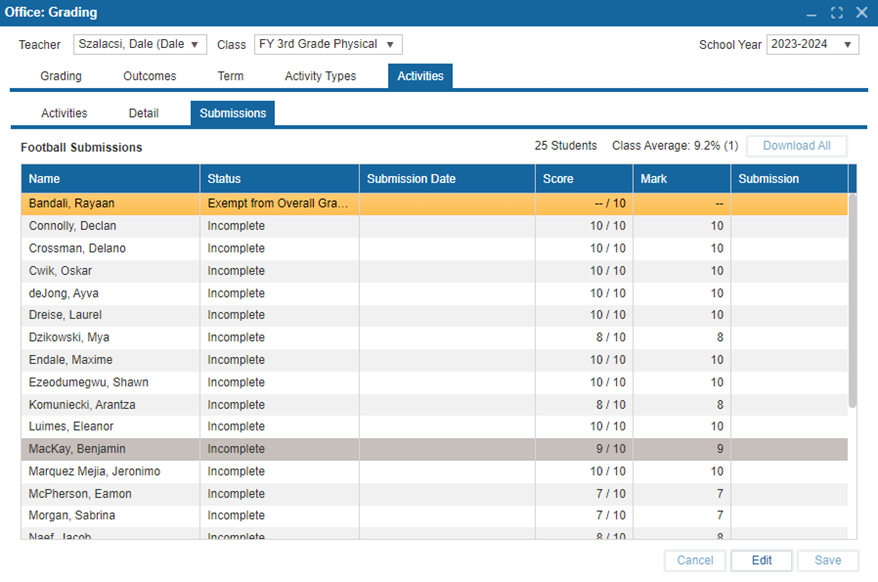
This subtab also has a few items above the table. These include:
- The Student Count
- The Class Average
- A Download All button that downloads all of the student submissions.
Version: 252 Updated: February 4, 2025