¶ Office Attendance
Teachers may enter attendance through the Teacher Portal. Alternatively, office staff and/or designated users with administrative access can enter attendance using the admin login.
The office attendance feature has three tabs:
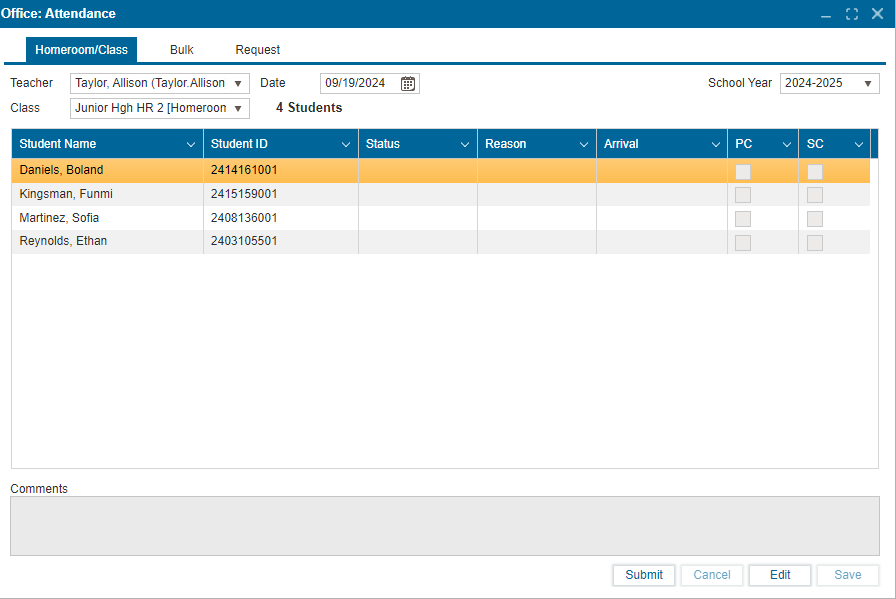
1. Homeroom/Class
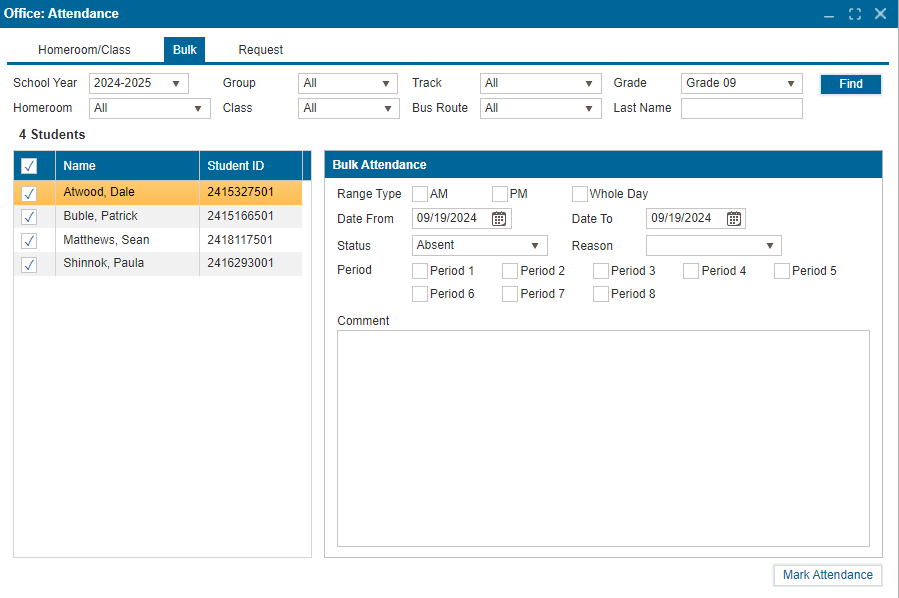
2. Bulk
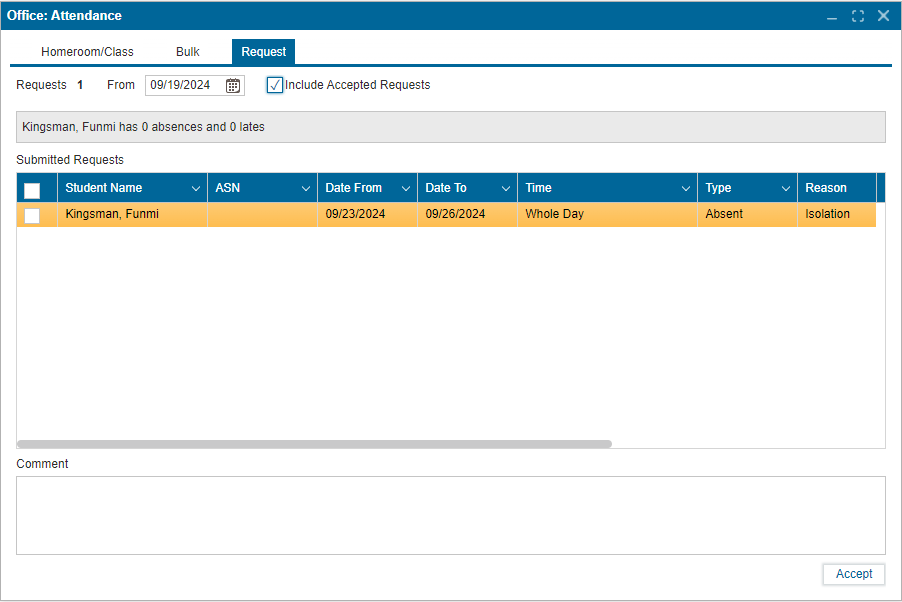
3. Request
Click on the tabs below to see the user guide:
Follow the steps below to mark and submit attendance:
-
Navigate to Office >> Attendance
-
Select the teacher, class, and date. (Note: ensure the correct school year is selected).
-
Click "Edit."
-
Click in the status field to select status from the dropdown and select the reason if applicable.
-
Save to confirm changes.
-
Submit attendance using the “Submit” button.
- Note: Once attendance is submitted, no further changes can be made to the attendance.
Version: 252 Updated: February 4, 2025
Steps to Bulk Submit Attendance
-
Navigate to "Office >> Attendance."
-
Select the "Bulk" tab.
-
Use the dropdown fields to filter the search.
- If all fields are left as default (“All”), all the students in the school will be listed when the “Find” button is clicked.
-
Select the students to take attendance for, using the checkboxes beside the name.
-
Select the range type, date (from and to), status, reason, and period (if applicable).
-
Add comments (if necessary).
-
Use the “Mark Attendance” button to complete attendance for the selected students.
Version: 252 Updated: February 4, 2025
Viewing and Accepting Attendance Requests:
-
Navigate to
Office >> Attendance. -
Click on the Request tab to view individual attendance requests.
-
Set Date Filter:
- Click on the “From” date selector.
- Choose the starting date for the requests you want to display.
-
Include Accepted Requests (Optional):
- Check this box to display all attendance requests, including previously accepted ones.
-
Select the request(s) using the checkbox.
-
Add Comments (Optional):
- Use the Comment text box to add any necessary comments related to the selected request.
-
Accept and approve the attendance request using the Accept button.
- If no action is taken, the status of the request remains as “Submitted.” Once accepted, the status changes to “Accepted.”
¶ Fields in the Submitted Table:
- Student Name: The name of the student.
- ASN: Alberta Student Number (Student Identifier).
- Date From: Start date of the attendance request.
- Date To: End date of the attendance request.
- Time: Time details for the attendance request (this could be the whole day, AM, or PM).
- Type: The type of attendance being requested (Absent or Late).
- Reason: Reason for the attendance request.
- Date Submitted: Date the request was submitted.
- Submitted By: The person who submitted the request (only a parent can do this).
- Status: The current status of the attendance request (Submitted or Accepted).
Version: 252 Updated: February 4, 2025