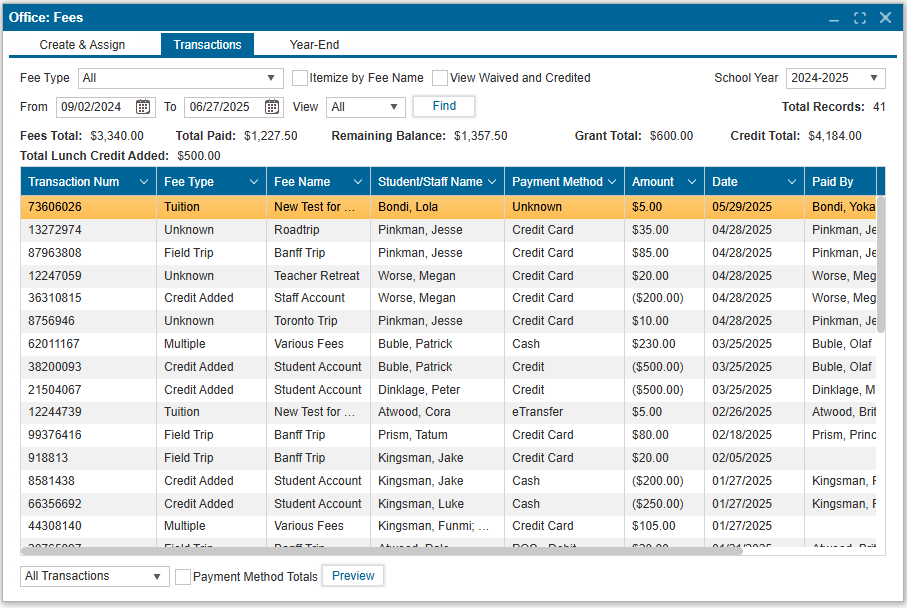
¶ All Transactions
The All Transactions tab allows you to view all transactions based on the specified date range and fee type.
¶ Steps to View Transactions:
- Navigate to
Office: Fees >> All Transactionstab. - Select a Date Range using the date range selector to filter transactions within the specified period.
- Filter by Fee Type:
- Use the Fee Type dropdown to filter transactions by a specific fee type.
- The default selection is All.
- Click “Find” to see transactions (Total Records displays the number of transactions shown in the result table below).
Note:
- Itemize by Fee Name Checkbox
Breaks transactions down by individual fee name for detailed review instead of a combined total.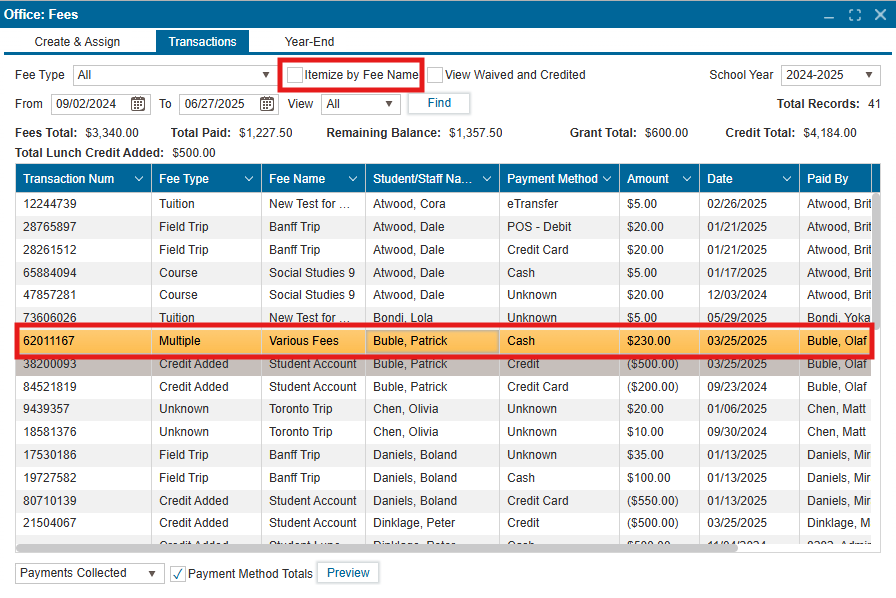
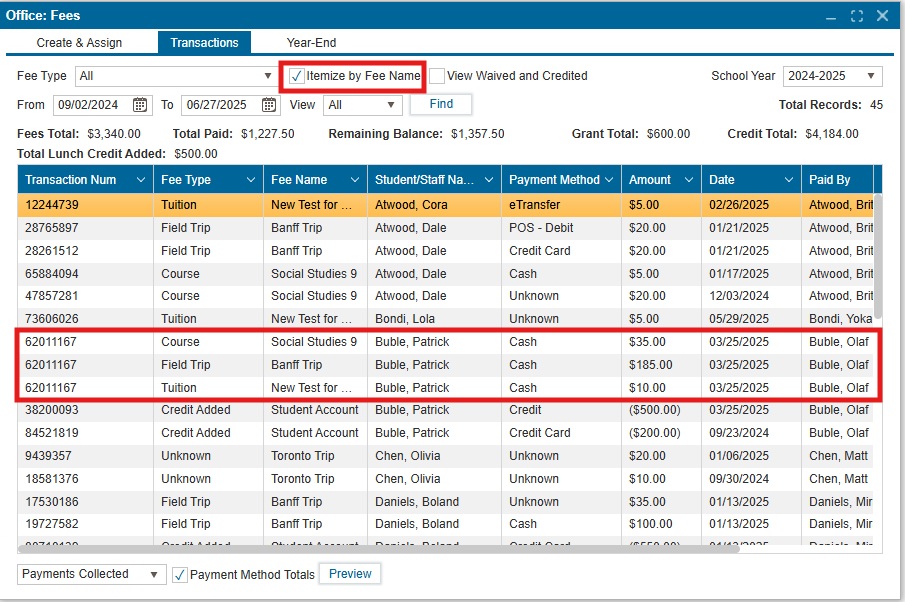
- View Waived and Credited Checkbox
Displays any waived fees, credited amounts, and adjustments in the results.
¶ Additional Information on the Screen:
- Fees Total: The total amount of fees displayed.
- Total Paid: The total fees that have been paid.
- Remaining Balance: The unpaid portion of the fees.
- Grant Total: The total grant amount awarded.
- Example: If 10 students have been awarded a $100 grant each, the Grant Total will be $1,000.
- Note: Grants are not itemized in the list of transactions.
- Credit Total: The total sum of credit on account for all students, for a specified date range.
- Total Lunch Credit:The total amount made towards Lunch credit.
- Preview: Select a report from the dropdown and click Preview to view the selected report (If the Payment Method Totals checkbox is checked, an additional table will be included in the report showing the types of payment and their corresponding total amounts.)