¶ Lunch Checkout
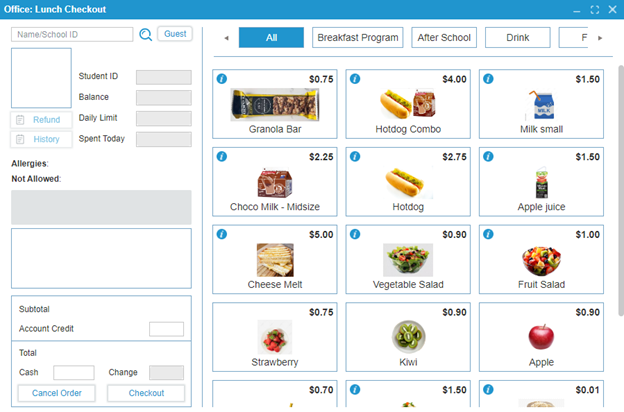
The Lunch Checkout feature is used by cafeteria cashiers to collect payment for menu items. Menu items are organized in the table on the right side of the screen, based on the Order selected in Administration: Lunch. These items can also be filtered by category labels at the top of the table.
¶ To Buy an Item:
- Select a person – Students and staff can be searched by last name or School ID using the search bar in the top left.
- Checkout as a Guest – Click the Guest button to process an order for a guest.
- View allergies or restricted foods – Once a person is selected, any allergies or restricted foods will appear in the bottom left.
- Select menu items – Add multiple menu items to the order, and a running total will be displayed in the bottom left.
- Account credit – If the person has account credit, it will be displayed and can be used to pay.
- Payment and change – Enter the cash amount given by the patron, and the system will calculate the change.
- Click Checkout to complete the transaction.
¶ Additional Features:
- Cancel Order: Click the Cancel Order button to reset the screen and cancel the current order.
- Refund:
- For students or staff: Select the person and click Refund on the top left.
- For guests: Click Guest and then click Refund.
- Order History: View order history by selecting the person and clicking the History button.
Version: 252 Updated: February 4, 2025