¶ Groups
¶ Overview
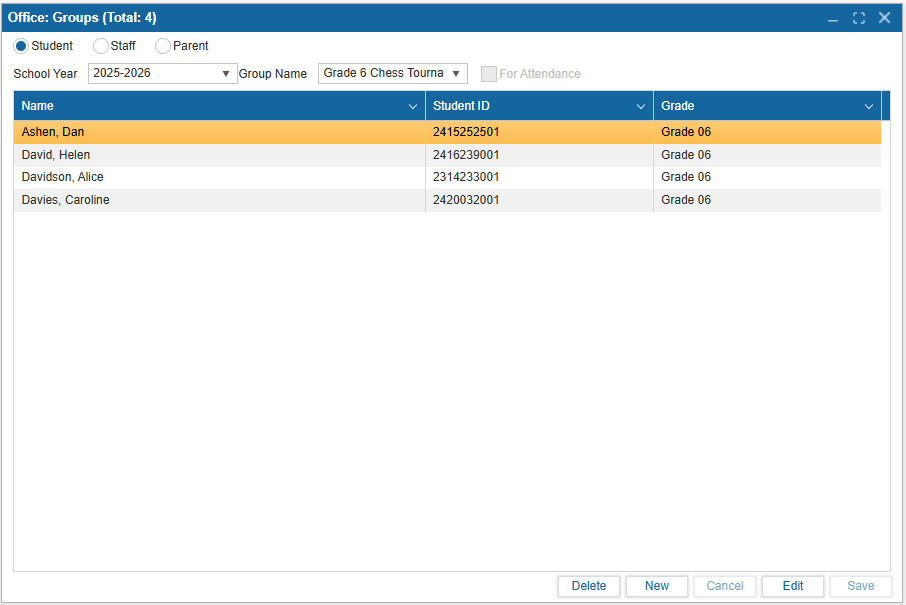
The Groups feature is available in the Admin Portal under the Office module. This feature is used to group students, staff, and parents under a common branch, for example a sports team. This provides the user the ability to conduct operations in the system all at once for a group instead of student by student.
¶ Create, Edit, & Delete a Group
-
Navigate to Office: Re-Enroll Summary. The school year will default to the upcoming year.
-
Choose a user type: Student, Staff, or Parent.
-
Select New, and then select the (+) icon to open the Search window and add users of that user type.
-
Enter a Group Name in the field at the top and check 'For Attendance' to allow staff to take bulk attendance for this group.
-
Select Save to create the group.
-
Select Edit to make any adjustments or add/remove users, and select Save or Cancel as needed.
-
Select a group from the dropdown menu to Edit or Delete the group.