¶ Attendance Tracker
The Office Attendance Tracker allows users to track attendance for both teaching and administrative staff, as well as students.
Attendance tracker has two tabs:
- Staff Tracker Tab: Allows users to track attendance for teaching and administrative staff.
- Student Tracker Tab: Provides functionality for tracking student attendance (only students marked absent without reason show up here).
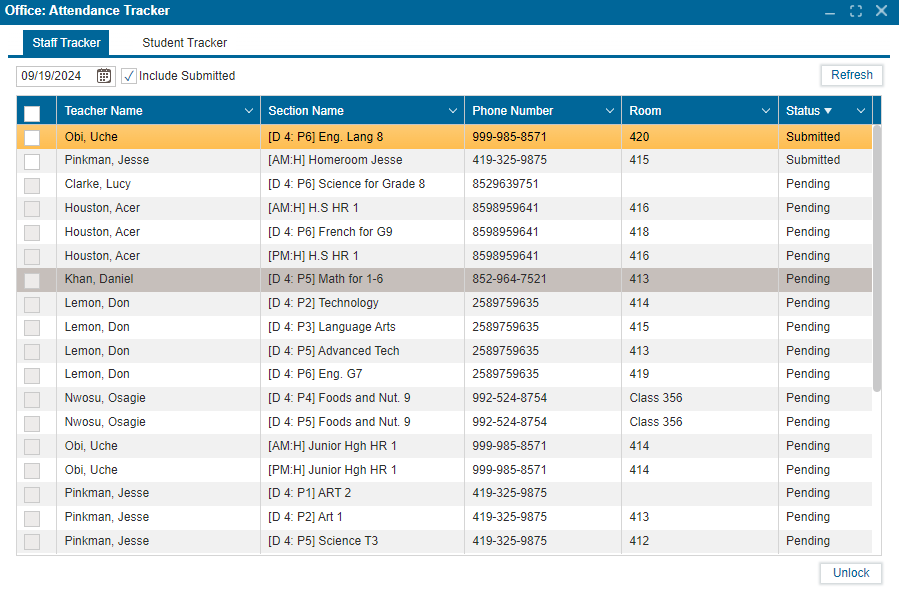
There are 4 main action buttons/checkbox in the staff tracker tab:
¶ 1. Date Field
- Located at the top left of the window, the Date Field allows users to select the date for viewing attendance records.
- The default date is set to the current date (e.g., 09/02/2024).
- Users can change the date by clicking the calendar icon and selecting the desired date from the calendar widget.
¶ 2. Include Submitted Checkbox
- Located next to the date field, this checkbox lets users include or exclude records that have already been submitted.
- If checked, all records (including submitted ones) will be shown. If unchecked, only unsubmitted records will be displayed.
¶ 3. Refresh Button
- Located to the right of the date field, the Refresh Button reloads attendance records based on the selected date and filter options.
- Clicking this button updates the attendance list displayed in the table below.
¶ 4. Unlock Button
- Located at the bottom right of the interface, the Unlock Button allows users to unlock selected records for editing.
- This feature is useful for updating or correcting attendance records.
- The button is enabled when at least one record is selected using the checkboxes in the table.
¶ Using this tab:
- Select the desired date using the date field.
- Check or uncheck the "Include Submitted" checkbox based on whether you want to view submitted records.
- Click the Refresh button to load the attendance records.
- Click any column header (e.g., Teacher Name, Section Name) to sort the records in ascending or descending order.
- Use the checkboxes to select multiple records for batch processing.
¶ Staff Tracker fields and columns:
- Teacher Name: Displays the name of the teacher or staff member. This column can be sorted alphabetically.
- Section Name: Displays the section or department the staff member belongs to. This column is also sortable.
- Phone Number: Displays the staff member’s contact number. This column is sortable.
- Room: Displays the room or office number of the staff member. This column is sortable.
- Status: Displays the attendance status (e.g., Present, Absent). This column is sortable.
Version: 252 Updated: February 4, 2025
The Student Tracker Tab provides functionalities for tracking student attendance based on the selected track and date.
Note: The student tracker tab only displays student absent without reason
¶ Using the Student Tracker
1. Select Track and Date:
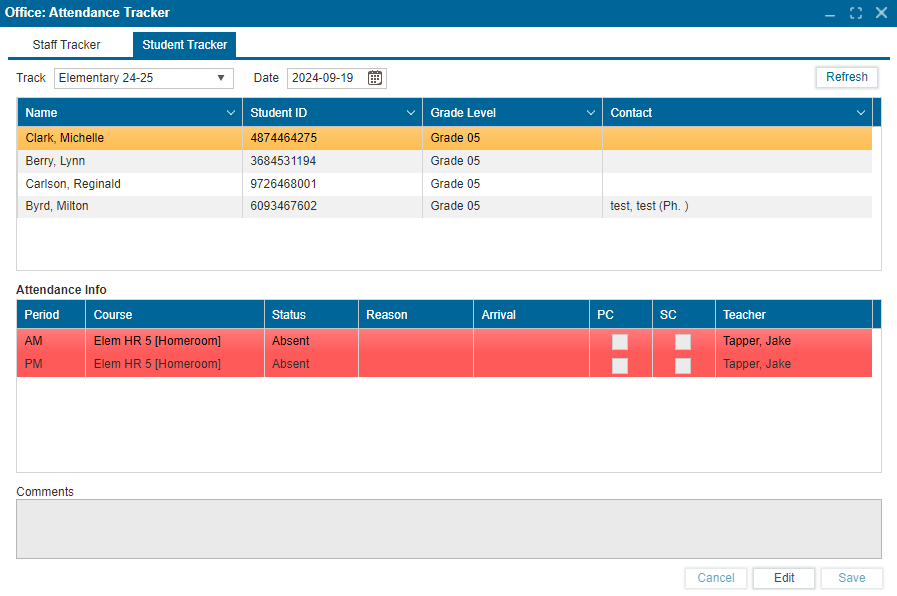
- Choose the appropriate Track (e.g., Elementary) from the dropdown menu and select the desired date for attendance review or modification.
2. View Attendance:
- Locate the student in the Student Records Table. Click the student’s name to access detailed attendance information in the Attendance Info Section.
3. Edit Attendance:
- To modify attendance, click Edit in the Attendance Info Section, make the necessary changes, and click Save to confirm changes.
4. Add Comments:
- Enter any notes or explanations in the Comments Textbox. Be sure to click Save to store the comments.
¶ Fields/Action Buttons in the Student Tracker
1. Track: Located at the top left of the interface, the Track Dropdown allows users to select the track level (e.g., Elementary, Junior High, High School).
2. Date: Positioned next to the Track dropdown, the Date Field allows users to choose a specific date for viewing attendance records. (Date field defaults to current date).
3. Refresh: Located to the right of the date field, this button reloads student attendance records based on the selected track and date. (users should click Refresh button after selecting a new track or date to ensure the correct records are displayed.
4. Name: Displays the student's full name. This column can be sorted alphabetically.
5. Student ID: Shows the unique identification number assigned to each student. This column is sortable.
6. Grade Level: Indicates the student’s current grade level. This column is sortable.
7. Contact: Displays the contact information for the student or guardian (e.g., phone number or email). This column is sortable.
8. Period: The specific period of the school day.
9. Course: The name of the course or subject for that period.
10. Status: The student's attendance status (e.g., Present, Absent).
11. Reason: Displays the reason for absence (e.g., Sick, Excused), if applicable.
12. Arrival: Records the time the student arrived if tardy.
13. PC: Indicates whether parental contact was made.
14. SC: Indicates whether school contact was made (e.g., office, teacher).
15. Teacher: Displays the name of the teacher for the course or period.
16. Comments: Allows users to enter additional notes or explanations related to the student's attendance.
17. Cancel Button: Allows users to discard any changes made and revert to the previously saved state.
18. Edit Button: Enables editing of attendance information and comments for the selected student. Once clicked, the fields become editable.
19. Save Button: Click the Save button to confirm changes made.
Version: 252 Updated: February 4, 2025