¶ 📅 Year-End
¶ Year End Overview
The Year End feature in ISMS is designed to streamline the transition of student records, grades, and enrollments from the current academic year to the next. This feature allows school administrators to systematically:
- Promote students to the appropriate next grade level
- Transfer students to their designated schools for the upcoming year
- Finalize grades and attendance records to lock down data for the ending school year
- Upload compliance documents for provincial records such as PASI
- Generate key reports to review data before finalizing transitions
- Clone homerooms and sections from one year to the next to minimize setup time
¶ Key Sections of the Year End Feature
The feature is structured across multiple tabs, each serving a specific purpose:
- Reports: Generate audits and summary reports to validate student and school data.
- EOY Prep: Prepare student records, roll over grades, and handle attendance finalization.
- Finalize EOY: Perform the final year-end rollover to update school year settings across the system.
- Clone Homerooms/Sections: Duplicate structural setups like homerooms and sections for the new school year.
¶ 🚦 Prerequisites for Running the Year End Process
Before initiating the Year End workflow, the following steps must be completed:
-
⚙️ Next School Year Configuration
- Navigate to Setup > Initial Setup > School Year tab, and configure the upcoming school year.
- Navigate to Setup > Initial Setup > School Year tab, and configure the upcoming school year.
-
📘 Track Information
- Navigate to Setup > Initial Setup > Track Information tab, and define:
- Tracks
- Bell Schedule
- Terms
- Grade Levels for the new school year
- Navigate to Setup > Initial Setup > Track Information tab, and define:
- 📋 Report Card Status
- In Administration > Setup Report Card, ensure that all Reporting Periods are set to "Closed".
➡️ Once the steps above are completed, proceed to Administration > Year End and continue with the process as outlined in the tabs below:
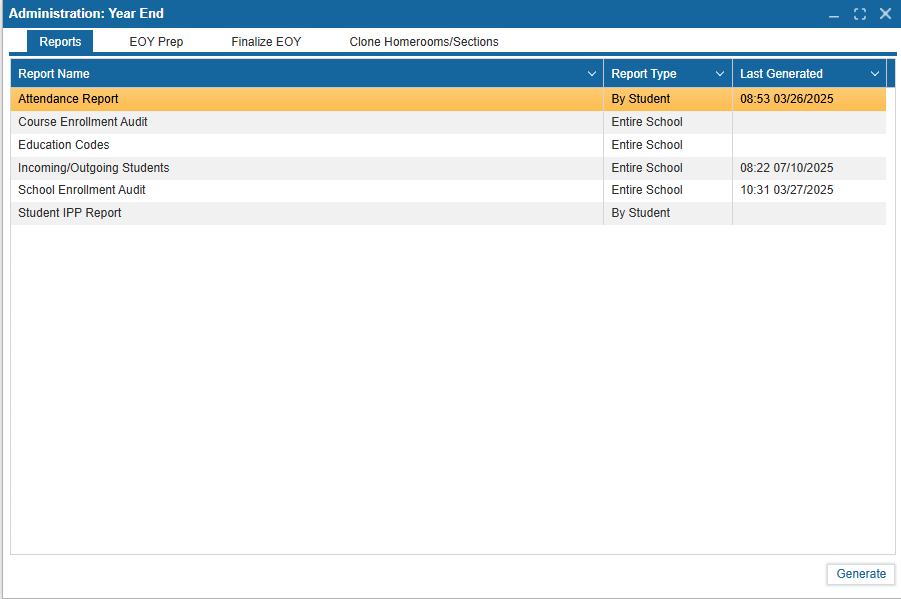
The Reports tab provides access to essential audit and summary reports that support the Year End process. These reports help validate student data, track enrollment transitions, and ensure program compliance before rolling over into a new academic year.
Although reports can be generated at the end of the year, larger schools are encouraged to generate them monthly to monitor data consistency and address potential issues early.
¶ How to Generate a Report
- 🖱️ Click to highlight the desired report from the list
- ⚙️ Click the Generate button at the bottom-right
- 📂 The report will be generated and made available for viewing or printing in a zipped folder
- 🕒 The Last Generated column will update with the latest date and time a report was generated.
⚠️ Note:
The Incoming/Outgoing Students Report may not reflect accurate data if generated mid-year.
It is recommended to run these reports after completing the Year End process for a reliable snapshot of student movement between schools.
¶ 🗃️ Rollover Subtab
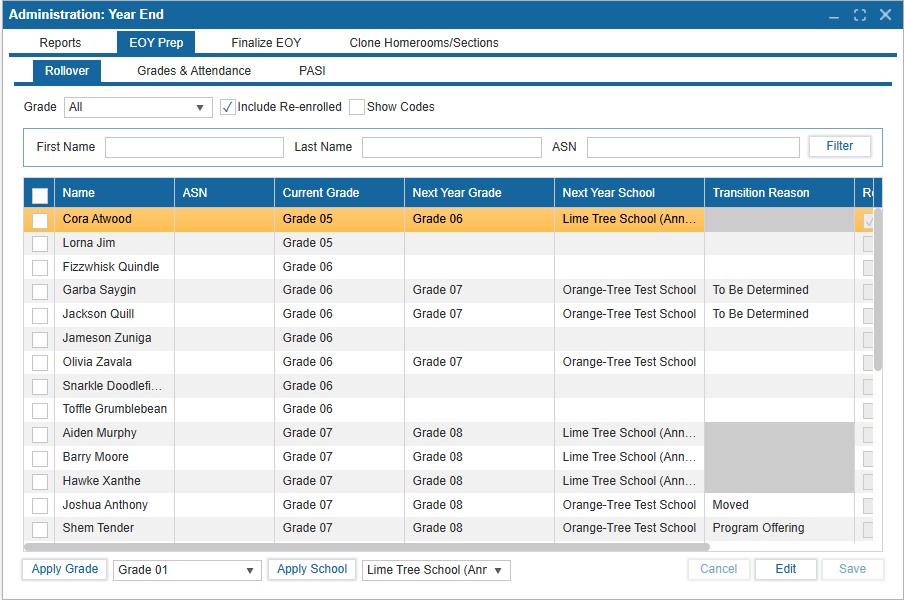
The Rollover subtab is where next-year information for currently enrolled students is set up. This includes assigning:
- Next Year Grade
- Next Year School
- Relevant codes such as:
- Grant Programs
- Enrollment Types
- Exception Codes
This information is critical for creating valid school enrollment records and ensuring smooth data submission to PASI.
¶ 🟩 Step 1 – Filter the Student List
- Use the Grade Filter dropdown at the top of the window to view students by their current grade.
- Ensure the Re-enrolled checkbox is unchecked to avoid overwriting student data already submitted through the Re-enrollment portal.
- (Optional) Check the Show Codes checkbox to view exception codes associated with each student.
- You may also search for a specific student by entering their first name, last name, or ASN.
¶ 🟩 Step 2 – Enter Next Year Grade and School
- Use the checkbox to select students, click the dropdown field for Apply Grade to select the Next Grade then click the "Apply Grade" button
- Select the Appropriate School and click "Apply School" button
- If a different school is selected (not the current school):
- The Transition Reason field becomes editable (default value is "To Be Determined").
💡 Bulk Apply Option:
If many students share the same grade or school:
- ✅ Use the checkboxes to select them
- 🔁 Use the Apply Grade and Apply School buttons below the table to move selected students to the next grade and next school
¶ 🟩 Step 3 – Assign Codes (Optional but Recommended)
- Ensure the Show Code Tables checkbox is checked (it is by default).
- Select a student to display the associated code fields.
- In the code popup section, review or select:
- Grant Programs
- Enrollment Types
- Exception Codes
- Click Save to apply selected codes for that student.
¶ ✅ Please Confirm Before Proceeding
- Every student has a Next Year Grade and Next Year School
- Relevant codes are assigned (if applicable)
- Students transferring Out of District have a valid Transition Reason
Note: If the student has completed the final grade offered by the school (Grade 9 for K–9 schools or Grade 12 for K–12 schools), set the Next Grade field to "Graduating."
¶ Grades & Attendance Subtab
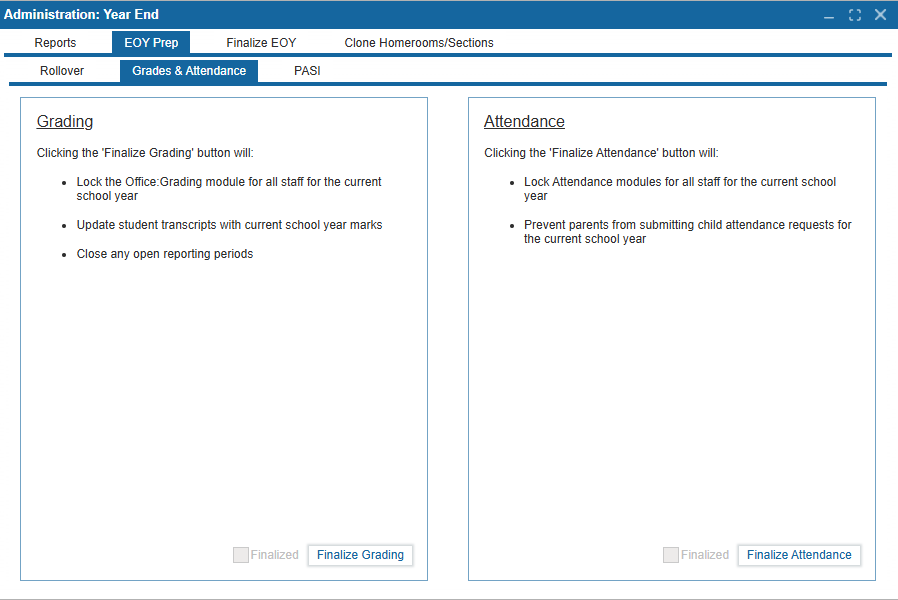
The Grades & Attendance subtab is where student grades and attendance are finalized for the current school year. Finalizing this data locks it from further edits and enables the Year End rollover to proceed.
¶ 🟩 Finalization Steps
-
🧾 Finalize Grades
- Click the Finalize Grading button to lock all grade entries for the current school year.
- ✅ A read-only checkbox will appear showing completion
-
🗓️ Finalize Attendance
- Click the Finalize Attendance button to lock attendance records.
- ✅ A read-only checkbox will confirm it's complete
⚠️ Note:
Both grades and attendance must be finalized before continuing to the Finalize EOY tab.
¶ PASI Subtab (To be enabled in Phase III)
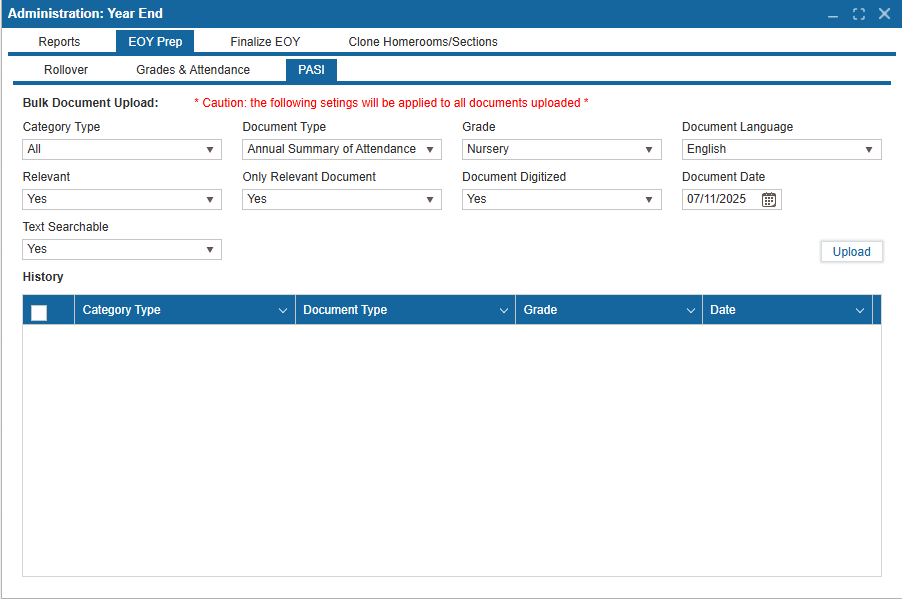
Use this tab to bulk upload key documents to PASI, including:
- 📄 Attendance Summaries
- 🧾 Report Cards
- 🗂️ Individual Program Plans (IPPs)
¶ 🟩 To Submit Bulk Document to PASI, select the appropriate fields below:
- Category Type – Select from:
- All, Admin, IPP, or School Reports
- Document Type – Options vary based on the selected category
- Grade – Choose the grade level the document applies to
- Document Language – Select either English or French
- Relevant – Choose Yes or No
- Only Relevant Document – This becomes clickable only if Yes is selected
- Document Digitized – Indicate whether the document has been digitized
- Document Date – Defaults to the current date
- Searchable Text – Select Yes if the document contains searchable text; otherwise, choose No
- Once all required fields are completed, click Upload to submit the document to PASI
- View all previously uploaded documents in the Upload History section at the bottom of the screen
⚠️ Note:
This document upload feature is currently disabled. It will remain unavailable until PASI compliance is fully implemented and approved.
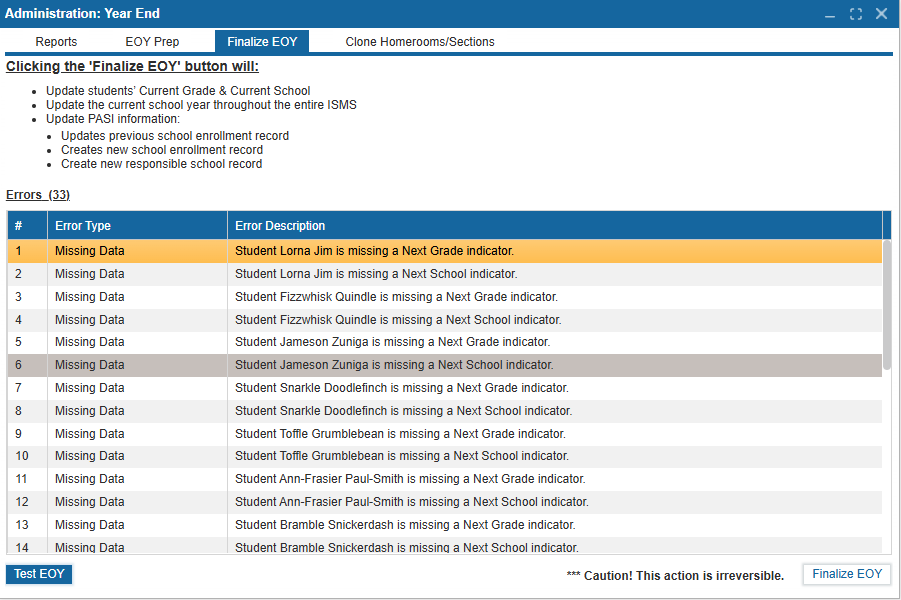
The Finalize EOY tab completes the Year End process. Once triggered, it performs all necessary backend actions to roll students into the new academic year — including:
- Updating their grade
- Updating their school
- Adjusting enrollment status
- Archiving current year data
⚠️ Important:
This action is irreversible. Ensure all steps in the previous tabs are completed before proceeding.
¶ 🟩 Step 1 – Click “Test EOY”
- Click the Test EOY button to validate your data.
- Review any errors shown in the error reporting table. Common errors include:
- Missing next grade
- Missing next school
- Open reporting periods
- Unfinalized grades or attendance
- Missing bell schedule
- Fix the listed errors and click Test EOY again.
- Repeat this process until no errors remain.
¶ 🟩 Step 2 – Finalize the EOY
- Once all errors are resolved, click the Finalize EOY button.
- A confirmation prompt will appear with further instructions — read and acknowledge to proceed.
- Once confirmed, the Year End process will complete successfully.
¶ 🟩 Step 3 – Adjust School Years
- Navigate to Setup > Initial Setup > School Years to update the school year settings.
-
For example, if you're transitioning to the 2026–2027 school year:
- Set Current Year to 2026–2027
- Set Next Year to 2027–2028
-
¶ 🔄 What Happens After EOY is Finalized?
The system automatically:
- Updates each student’s Current Grade and School
- Updates status: Returning, Transferred, Graduated, or Withdrawn
- Clears fields: Homeroom, Teacher, Bus, Locker
- Archives current year & activates next
- Creates new Enrollment and Responsible School records
- Submits updates to PASI
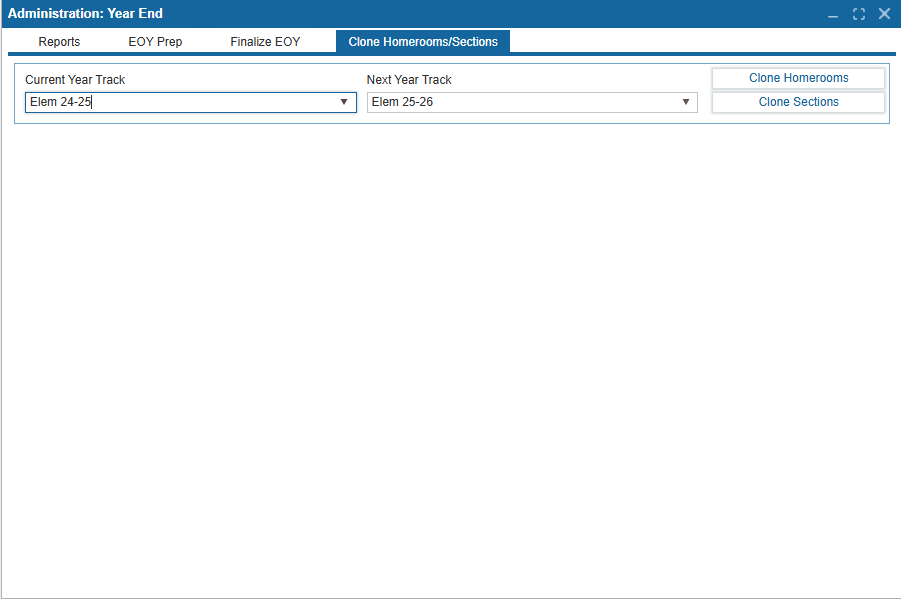
This optional tab allows you to copy homerooms and sections from a previous school year into the new one.
⚠️ Note:
Use this only after the Year End process is complete.
¶ 🟩 How to Clone
- Select the Current Track and the Next Year Track
- Click Clone Homerooms or Clone Sections
- Confirm when prompted — a success message will appear
- Repeat for each track as needed
- View cloned records in Administration > Class and Homeroom and CTS