¶ Homeroom
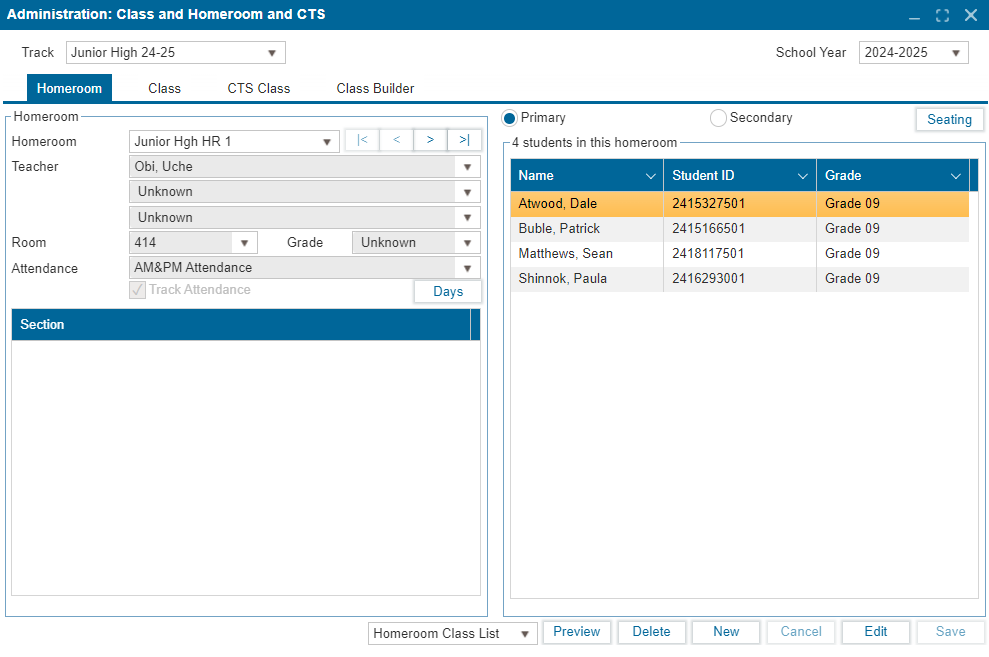
The Homeroom tab is used to create and edit homerooms. To create a new homeroom, click the New button in the bottom right. Then, fill out the fields in the top left:
- Enter a name for the homeroom.
- Select a teacher.
- Select a room.
- Select a grade.
- Choose an attendance schedule.
Note: If there aren’t any rooms available, it is because they have not been configured in the Office: Miscellaneous: Room tab.
The Attendance dropdown controls when during the day attendance will be taken. If the homeroom does not meet every day throughout the Bell Schedule, the Days button can be used to select specific days for attendance.
Students can be added to the homeroom using the table on the right. The seating plan can be edited using the Seating button in the top right.
Sections can be added to a homeroom using the table in the bottom left. Adding a section to the homeroom will enroll all of the students in the homeroom into that class.
Version: 252 Updated: February 4, 2025